|
Schedule Backup |

  
|
|
Schedule Backup |
|
|
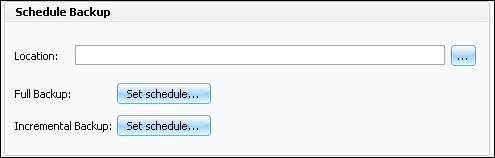
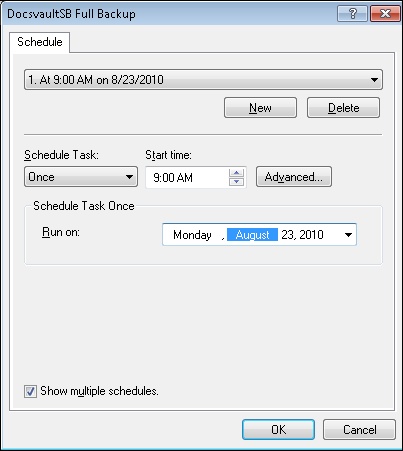
You can also schedule your backup under the Schedule Backup section. You can schedule your backup to run periodically or at a specific time. Scheduling a backup in Docsvault is quite similar to 'Task Scheduler' in Windows.
Set Schedule for Automatic Backups
Full backup: Will take backup of all files and meta data in the repository till date. You normally perform 'Full backup' the first time you create a backup set and then once a week or month.
Incremental Backup: Backs up only those files created or changed from the last 'Full or Incremental backup'. Incremental backups can be performed daily or every few days between the full backups.
It is a good idea to maintain a consistent location for the backups to ensure correct backup set creation.
Similarly, you can create schedule for Incremental Backup.
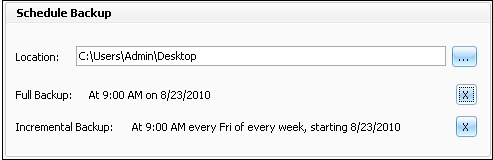
Docsvault will automatically take your next backup during the time frame you have specified.
To delete the backup job, simple click on the delete ( X ) button.
Page url: http://www.docsvault.com/online-help/professional/index.html?schedulebackup.html |