|
Extracting Pages
To extract pages from a pdf document to another document.
For example:
If you have a PDF file of 20 pages and you want to extract 1,2,3,4 and 10th and save it as Dental Implantation. PDF in the location 'Docsvault\Medical\Notes', enter the following information in Split or Extract Pages window.
|
| • | From the Document menu, select Split or Extract Pages option or click the Split or Extract button  from the Document toolbar or press Ctrl + L. from the Document toolbar or press Ctrl + L. |
| • | The Split or Extract Pages pop-up window will be displayed. |
| • | Under Extract Section, specify the pages to extract. |
| • | Provide the new File name. |
| • | Select the destination, where you want to save the extract pages in Docsvault and click the OK button. |
| • | In Import files and folder box, enter the description and select an appropriate Profile with predefined settings for the new PDF file. For more information see Assigning Profile to Documents. |
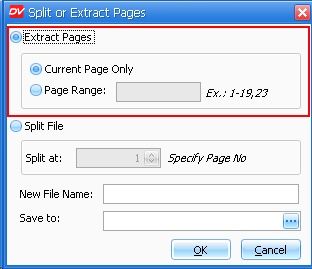
|
Extract Pages
|
 Note: Note:
| • | Extracting the pages will not delete the pages from the original file. |
|
Page url:
http://www.docsvault.com/online-help/professional/index.html?extract_pages.html
|


