|
Split file by page range
The Split File feature allows you extracting pages from a PDF file to convert it into a new separate file.
Split into file from 'n' page.
Docsvault PDF Editor offer you the method of splitting the file by pages. You can extract the pages from the file and save it into a new sperate file.
| • | From the Document menu, select Split or Extract Pages option or click the Split or Extract button  from the Document toolbar or press Ctrl + L. from the Document toolbar or press Ctrl + L. |
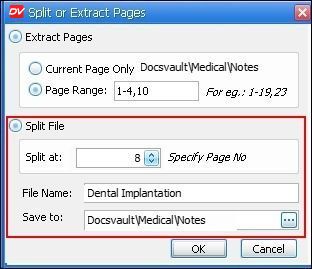
| • | The Split or Extract Pages pop-up window will be displayed. |
| • | Under Split File Section, specify the (n) page no. from where the file has to be split into a new file. |
| • | Provide the new File name. |
| • | Select the destination, where you want to save the file in Docsvault and click the OK button. |
| • | In Import files and folder box, enter the description and select an appropriate Profile with predefined settings for the new PDF file. For more information see Assigning Profile to Documents |
For example:
If you have a PDF file of 20 pages and you want to split it from 8th page. Entering ' 8' against 'Split at:', this would split the file into a new file from the 8th page.
|
|
Split Files
|
 Note: Note:
| • | Splitting the file will delete the pages from the original document and save it into a separate PDF file. |
|
Page url:
http://www.docsvault.com/online-help/professional/index.html?split_pdf_files.html
|


