|
Append or Merge Files
For example:
If you have a book that have been scanned into two pdf files. One contains all the odd-numbered pages (say- Oddpage.pdf); the other contains all the even-numbered pages(say- Evenpage.pdf). You can then merge them into a single document and then reorganize them.
|
To append or merge files from a pdf document to an existing document
| • | Open the file in which you want to merge the other PDF file. As per the above example say Evenpage.pdf from Docsvault Explorer window using Check Out option. |
| • | From the Document menu select Append or Merge Files or click the Append or Merge Files button  from the Document toolbar or press Ctrl + M. from the Document toolbar or press Ctrl + M. |
| • | Select the file to insert. Select the file you want to insert (For example Oddpage.pdf). |
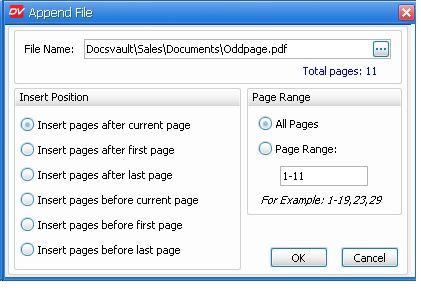
| • | The Append or Merge Files pop-up window will be displayed |
| • | The selected file will be displayed in File to Append box. Total pages displays total number of pages of the file to be appended or merged. |
| • | Under Page Range, select All to insert the whole document or specify the page range (for example 1-19,23,29) in Page range. |
| • | Under Insert Position. select the option where you want the file insert. |
| • | Click on OK when finished. |
| • | Repeat the steps to insert as many files as needed. |
| • | When you are finished, save the file. |
|
Append or Merge PDF Files
|
 Note: Note:
| • | It is easier to insert the files in order, for example, the first file you insert should be the file that comes right after the Evenpage.pdf file. |
|
 Important: Important:
| • | You can append or merge only those files that have already been converted to PDF. |
| • | At a time, you can only append or merge a single file directly from Docsvault Explorer Window. |
|
Page url:
http://www.docsvault.com/online-help/professional/index.html?append__merge_files.html
|


