|
Extract PDF Page as Image
You can convert text and image from PDF document to an image format. Docsvault PDF Editor allows you to export the page of PDF file to BMP image format.
To convert a page of PDF file to .BMP Image format
For example:
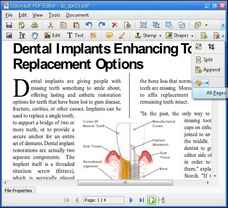
We open a PDF file and use Export as Image tool to convert all the pages of a document to image format.
|
| • | Select the page that has to be converted into image format. |
| • | From the Document menu select Export as Image > All pages or click on drop down arrow next to the Export as Image Text button  from the Document toolbar and select All Pages. from the Document toolbar and select All Pages. |
| • | The Save As dialog box is displayed. |
| • | Type a name in the File name text box. |
To export the pages as image, select Current page from Document > Export as Image.
 è è 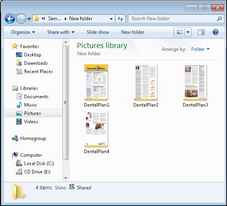
|
Export as Image
|
Page url:
http://www.docsvault.com/online-help/professional/index.html?export_image.html
| 


