|
Extract contents from PDF Page
Docsvault PDF Editor allows you to extract the text of a PDF document that has been through the OCR i,e optical character recognition process or PDF documents that allows a user to edit text and/or copy and paste text. The extracted text is placed in the Notepad and can be used as text file.
You can use Extract text tool to copy the page of any PDF file to text format in Notepad.
For example:
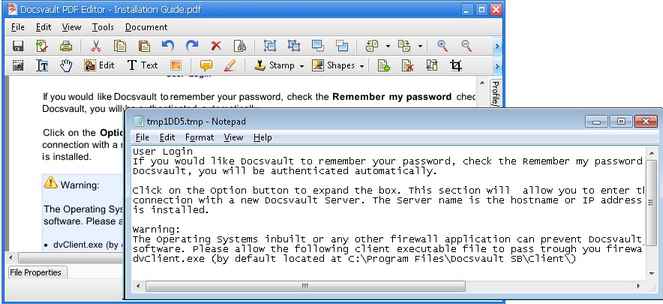
We open a PDF file and use Extract text tool to grab the data to Notepad file.
|
To convert a text content of a PDF file to Text format (.txt)
| • | Select the page that has to be converted into text format. |
| • | From the Document menu select Extract Text or click the Extract Text button  from the Document toolbar. To extract all pages of a document select All Pages from the Document toolbar. To extract all pages of a document select All Pages  from the drop down list. from the drop down list. |
| • | The text content from the current page is automatically copied to popup window of Notepad. |
| • | Select Save as from the File menu in Notepad to save the document in .txt format. |
|
Extract Text
|
 Note: Note:
| • | The text file you obtain when you convert a PDF file to .TXT Text format will not include any image or annotation. Extract Text tools allows you to extract only the content of the page. |
|
Note:
| • | You can extract text from OCR'd PDF file, edit and reuse the text that is normally locked inside scanned image. The selected text is actually contained in a hidden layer, separate from the document image. You can select and copy text in this layer just as you can in a text document. |
|
Page url:
http://www.docsvault.com/online-help/professional/index.html?export_text.html
| 


