|
Adding document from Microsoft Outlook using Save Item
Email messages, notes, calendar items from Microsoft Outlook can be saved directly to Docsvault in .msg format.
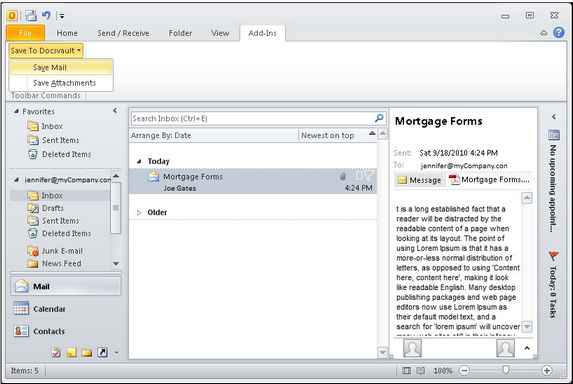
| • | From the Add-Ins menu, point to Save To Docsvault > Save Mail option to save an email message Or |
In Memo style, select Save Mail icon from the toolbar to save an email message.
|
Microsoft Outlook - Save Items
|
| • | Browse Docsvault navigator and select the folder to import the email to. |
| • | In Import files and folders dialog box, select Profile from the drop down list and enter index information into data fields. |
| • | Enter the short description. |
| • | You have option to preserve the original system date of a document by selecting Keep original system dates. |
| • | Click on Import button to begin importing your document. This will save the item into Docsvault as a file with .msg extension |
 Note: Note:
| • | You can quickly find the emails and its attachment added to Docsvault using full-text searches. For additional information,see Search Documents section. |
|
Adding document from Microsoft Outlook using Save Mail Attachments
When you receive an Outlook message containing several attached files, you don't have to open and save each file separately in Docsvault. You can save multiple attachments to the same location in a single step.
| • | Select the Outlook incoming mails. |
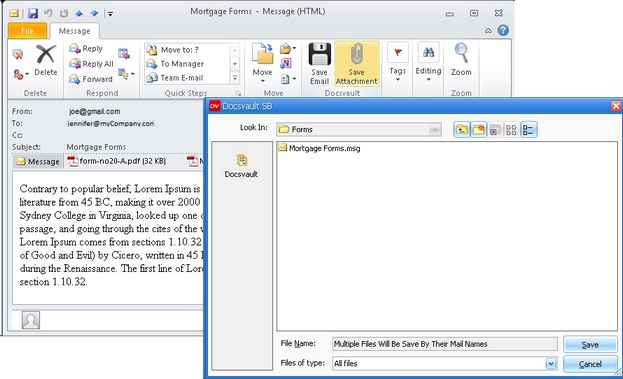
| • | From the Add-Ins menu, point to Save To Docsvault > Save Attachment option to save an email attachments Or |
In Memo style, select Save Attachment icon from the toolbar to save an email message.
| • | Browse Docsvault navigator and select the folder to import the email to. |
| • | In Import files and folders dialog box, select Profile from the drop down list and enter index information into data fields. |
| • | Enter the short description. |
| • | Click on Import button to begin importing your document. |
|
Save Email Attachments in Docsvault
|
| • | Enter the description and add profile properties. |
| • | Click OK button. This will extract and save the attachments into Docsvault. |
Note:
| • | This method saves all the files to the same folder. To save each attachment to a different folder, you will need to save them individually. |
| • | You now possible to change the email attachment’s file name during importing using Outlook plug in. |
|
Page url:
http://www.docsvault.com/online-help/professional/index.html?adding_mails_from_ms_outlook.html
| 


