|
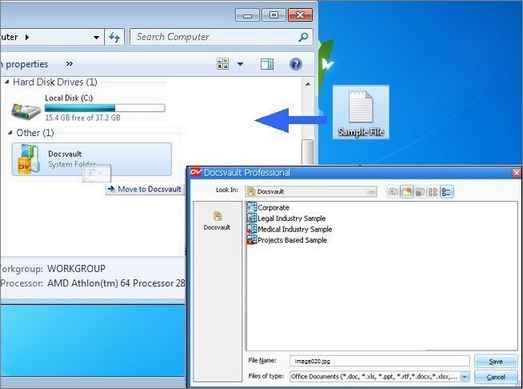
To add a document through the Drop Folder:
You can configure Drop Folder from Tools > Options > Import menu. The Drop Folder and be placed either under My Computer or on the Desktop. For more information, see Import.
| • | Select the file or files to be added to Docsvault. |
| • | Drag and drop the document in Drop Folder. |
| • | Select the folder where you want to add a document to in Docsvault. |
| • | In Import files and folders dialog box, select Profile from the drop down list and enter index information into data fields. |
| • | Select the from the drop down list. Note that the Folder Sections will be available only if it has been set on the destination folder. |
| • | Enter the short description. |
| • | Check the box next to 'Delete source files and folders after successful import' to delete the original files and folders from your local computer after successfully importing them into Docsvault. |
| • | 'Keep original system dates', select this option to keep original system dates for imported files and folders. If not selected then the imported date is applied to the files and folders.
|
| • | Click on Import button to begin importing your documents. |
Page url:
http://www.docsvault.com/online-help/professional/index.html?add_documents_from_drop_folder.html
| 


