|
Adding document from Microsoft Office applications
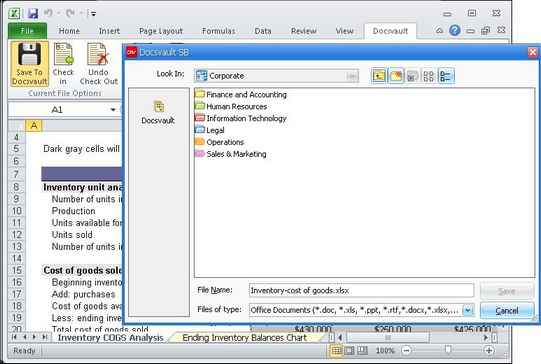
| • | A Docsvault navigation screen will then allow you to choose a Docsvault folder location to save the document. |
| • | In Import files and folders dialog box, select Profile from the drop down list and enter index information into data fields. |
| • | Enter the short description. |
| • | You have option to preserve the original system date of a document by selecting Keep original system dates. |
| • | Click on Import button to begin importing your document. |
|
MS Office document added into Docsvault
|
Page url:
http://www.docsvault.com/online-help/professional/index.html?adding_document_from_ms_office.html
|


