|
Scan Profiles |

  
|
|
Scan Profiles |
|
|
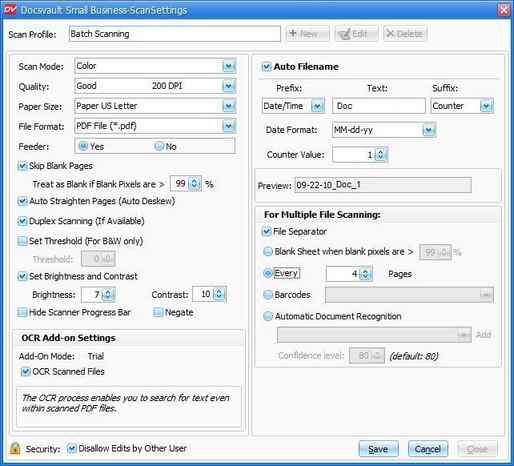
Scan Profiles Settings Each Scan Profile is a saved configuration of scanner settings. You can add or edit the scan settings to suit your preferences for page size, resolution, color mode, simplex or duplex scanning, rotation, blank page deletion, OCR the page, auto naming a file and more.
You can create your own scan profiles or use the predefined profiles. By default Docsvault will set the most recent Scan Profile each time you open the Scan form unless you create or select another scan profile.
A Scan Profile can consists of: File separator for multiple file scanning
Multiple Scan Profiles settings can be defined based on the type of jobs such as batch scanning, scanning images or pages.
Scan Mode You can set one of the following mode while scanning a document:
Black and White : the output will be in Black and White Gray scale : the output type is 256 shades of gray Color : the output is millions of colors.
Quality The most important consideration in assuring the quality and usefulness of the scanned image is determining the correct resolution for your scan. Resolution is the sharpness of an image. The optimum resolution depends on two factors -- the resolution capacity of the scanner device and the type of document you are scanning. Note that higher the resolution, the greater will be the final file size. Resolution are measured in dots per inch (dpi). In general, 300 dpi is the best for OCR accuracy. 400 dpi may be better for very small print.
Paper Size You can select the page size depending on the paper size of the document being scanned ex. US Letter, US Legal, A4 etc.
File Format You can scan and save pages in TIFF, PDF, JPG, BMP and PNG format.
Feeder Select YES setting if you are going to use an automatic document feeder (ADF) to scan pages. This option is to be set if you have a scanner with ADF and Flatbed.
Skip Blank pages This feature allows you to automatically discard blank pages while scanning. You can specify the ink density threshold in 'Treat as blank... '. This will check the percentage of written matter on a page. If it is greater than specified, it will treat that page as blank.
Auto Straighten Click box next to 'Auto Straighten' to let the program determine the straightening line. It will automatically straighten crooked pages by an angle of up to 10%.
Duplex Scanning You can use this option only if your scanner has duplex capabilities. This will allow a single pass scanning for both the front and back sides of your document. Docsvault will treat this as two subsequent images.
Image Settings: Threshold Adjusting threshold is like a cut off point to determine which pixel should be considered as black or white when a document is being scanned as black and white image.
Brightness Select a number from the drop-down list, to make the scanned image lighter or darker.
Contrast Select a number from the drop-down list, to set the contrast for highlights.
Hide Scanner Progress Bar: Select this option if you don't want the system to display scanning progress bar.
Negate: Select this option if you want to scan all the pages in invert colors (white or pale letters on a black or dark background).
Add-On Mode: This displays the mode the OCR process is currently in (Trial, Expired or Activated).
OCR Scanned Files: Select this option to OCR the scanned pages to searchable PDF file.
OCR process runs in the background as a separate service on the machine where Docsvault is installed. The OCR process identifies text in each scanned page with near perfect accuracy and create a hidden text layer within the same PDF file in such a way that each text word is exactly positioned behind its appearance in the image. For more information on OCR process and optimizing OCR accuracy, click here.
To process OCR, you must enable the OCR service in Tools > Advance Settings.. For more information on Performing OCR, seeOCR section in Advance Setting section.
If you have not selected OCR while scanning pages into PDF file, you can OCR it at the later stage. For more information, see Re-OCR PDF file.
Select "Auto Filename" if you want the default file name to be applied once the pages are scanned and imported. By default, 'Document' is assigned as the first file name in single file scanning and 'Document - 1' incase of batch file scanning.
The format of file name is divided into three sections: Prefix, Text, Suffix. You can create your own combination for the file name. For example, selecting <date/time>doc<counter> will display file name as "09-24-2010_doc_1".
Date Format: Select the format of date as practice in your organization.
Counter: You can reset the counter from where the document to start the numbering the file. Once the first document is created in a batch, any subsequent new document is assigned a number directly following the previous document number.
Preview text box will the display the final output of the combination selected and will signal if an incorrect combination is selected.
File separator for multiple file scanning Docsvault provides following document separators for true batch scanning. Place a separator on top of each document, then put a stack of documents on your ADF scanner. Docsvault will automatically separate the documents into individual files for you. With separators, it is possible to scan, convert, and save large volumes of documents with the touch of a button.
Blank page: Place blank pages if you want to save your document to multiple output files using the Create a new file at each blank page option. Set the blank page recognition threshold to consider the page as file separator. With duplex scanning, both sides of a sheet must be blank in order to qualify as a document separator.
Every x number of pages: Enter the number of sheets that should scan before a new file is created. For example, if you specify the count as 10, a new file is created each time that 10 pages are scanned.
Barcode: With the Bar Code document separation method, a new file is created automatically each time a certain bar code is detected. With Bar Code document separation, you can place the bar code on either the front or back of the separator sheets. From the list click the bar code that you want to use for file separation.
Automatic Document Recognition: With the Automatic Document Recognition separation method, a new file is created automatically each time a page with a certain formatted is scanned. You can easily scan and add the format of documents to consider as separator in Docsvault. For example. The format of invoice or check to easily to identify documents.
Page url: http://www.docsvault.com/online-help/professional/index.html?scanprofiles.html |