|
OCR |

  
|
|
OCR |
|
|
Optical Character Recognition (OCR) Options Optical Character Recognition is a method to identify text characters in an image file thus making an unsearchable scanned file (which is an image without any text information) into a searchable file. In Docsvault, the OCR feature is used to convert scanned and imported image based PDF files into searchable PDF files. The OCR process identifies text in each page with near perfect accuracy and create a hidden text layer within the same PDF file in such a way that each text word is exactly positioned behind its appearance in the image. This recognized text can now be used in three ways:
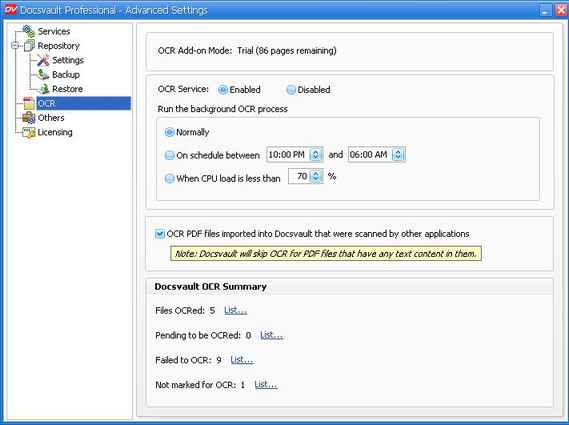
OCR Add-on Mode: This section displays the mode the OCR process is currently in (Trial, Expired or Activated). When in trial mode, you can see the number of trial pages remaining here out of the 100 pages trial limit.
OCR Service:
This option will allow you to enable or disable the OCR service.
OCR process runs in the background as a separate service on the machine where Docsvault Server is installed. Docsvault allows you to schedule the OCR process at a pre-defined time window or when the CPU is running below certain load.
To process OCR, you must enable the OCR service and set one of the following schedule options:
Normally: Select this option to process OCR at regular intervals (Docsvault will look for new files to OCR every few seconds)
On Schedule between ..... and ...... : On selection this option the OCR process will be executed only between the specified time window
When CPU load is less than ..... % : When this option is selected, OCR process will only start when the CPU usage is less than the specified percentage
Docsvault can also OCR PDF files that were scanned by other applications once they are imported into Docsvault. To enable this feature check the option shown below. Once this option is enabled, Docsvault will attempt to OCR all imported PDFs. However if the OCR process finds any text content in any imported PDF file, it will skip that PDF file and will keep it in its original form. This is essential to protect text based PDF files that do not need any OCR.
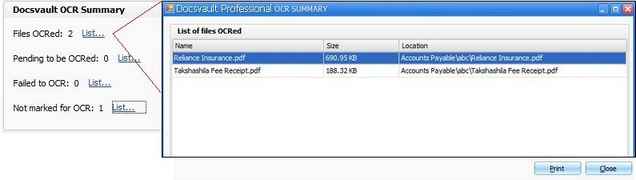
Docsvault OCR Summary: This will display the summary of OCR process along with the list of the files in different OCR states.
Page url: http://www.docsvault.com/online-help/professional/index.html?ocr.html |