Docsvault integrates with Microsoft Outlook to let you save email messages and their attachments directly to Docsvault.
Saving Emails from Outlook
You can save an Outlook email to Docsvault as an .msg file, including its email content and attachments.
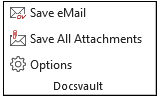
Save an Email
•In Microsoft Outlook, select the email you want to save.
•From the Docsvault Outlook Add-in, select Save eMail.
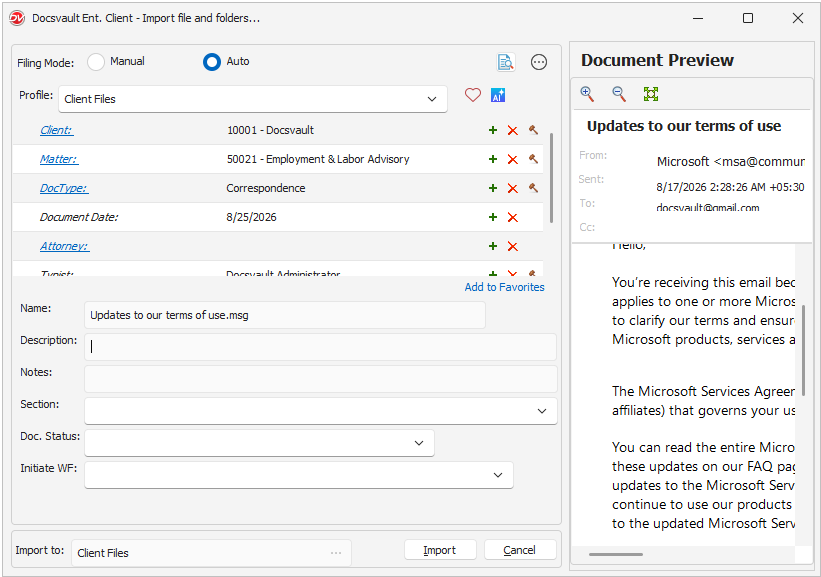
•The Docsvault Import dialog opens.
•In the Filing Mode section, select Manual or Auto:
oManual: You will be prompted to select the destination.
oAuto: Docsvault automatically files the email based on the configured profile and filing rules.
•In the Profile field, select the appropriate document profile.
•Enter or select the required index values.
•Review or enter the Name, Description, and Notes.
•Select the required Section, Doc. Status, and Initiate WF values, if applicable.
•Check the Import to location at the bottom of the dialog. Click the browse button if you need to change the destination.
•Review the email in the Document Preview panel. The preview displays the email content and shows any attachments included with the email.
•Click Import.
 |
The email is saved in Docsvault as an .msg file.
When an email is successfully saved to Docsvault, a green checkmark  appears next to the email in Microsoft Outlook. This indicates that the email has already been saved to Docsvault.
Email Save Options
You can configure what happens to an email in Outlook after it is saved to Docsvault from Options. Depending on the selected setting, you can:
• Keep the email in Outlook.
• Delete the email from Outlook.
• Prompt for an action after saving.
For more information, See Email Save Options