Scanning and importing documents
Scanning document feature allows you to scan and store documents within Docsvault repository. Docsvault is designed to work with all TWAIN scanner.
Docsvault's inbuilt scanning window has all of the essentials features for good quality of text recognition. Built in image processing filter includes lots of post scanning tools to improve image quality such as despeckle, eraser, crop, brightness, contrast, erode, dilate, etc.
Once documents are scanned, you can visually check documents or pages and edit them as necessary. Editing functions include reordering, replacing, inserting, and deleting documents and/or pages. In addition, entire documents or individual pages can be rotated and saved in their rotated state.
Scanned documents can be quickly saved as searchable files such as TIFF, PDF, JPG, BMP, and PNG.
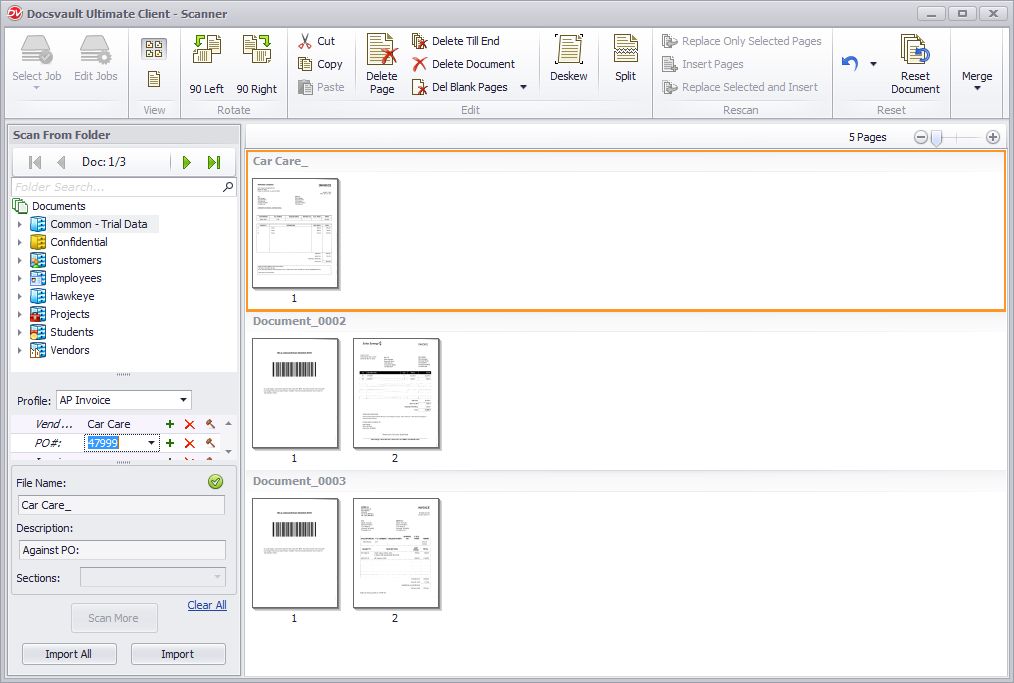 |
Starting up scanning interface
•Place the document in the scanner according to the scanner instructions.
•On the File menu, select Scan Docs Or
Click on Scan icon from the toolbar Or
From the tree view right click on a cabinet/folder. From the popup menu, select Scan Docs Or
Right click on the empty space below the list of files in list view. From the popup menu, select Scan Docs.
•Select Scan Job: Select a Scan Jobs from the drop down list. To add or edit a scan job, click on the Edit Jobs button on the ribbon. The name of the appropriate scan job appears on the toolbar below the Ribbon, and its settings are automatically associated with the current job. The selection remains active until you change it again.
•Click Scan button to scan the document. For more information on scanner, see Scanning.
•Scan Jobs is a collection of frequently used settings which can be saved and reused to scan a document. Instead of specifying these settings every time you scan and save a document, you can specify these settings once and save them as a Scan Jobs. You can set the setting for example: setting the resolution, file type, selecting the source for the pages in the scanner, OCR setting, defining auto file naming and file separator for multiple file scanning etc . |
