Navigation:  Docsvault Features > Search >

Save a Search criteria

Print this Topic Previous pageReturn to topNext page

Saving a search

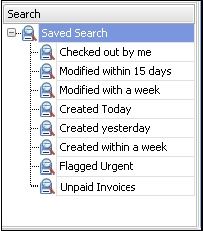
Frequently used search criteria can be saved along with search text by giving a meaningful name. These names appear in the left tree view panel of the Search tab.


Simply clicking on these names will give you the real time search result based on the saved search criteria and search text.


Docsvault provides 6 predefined "Save Search" items:


Checked Out                : Searches for documents that are currently checked out
Modified within 15 days        : Searches for files modified within last 15 days
Created Today                : Searches for files created today
Created Yesterday        : Searches for files created yesterday
Created within week        : Searches for files created in last 7 days
Modified within week        : Searches for files modified within last 7 days


List of Saved Searches


For example:

You may wish to create a "Saved Search" screen that is specifically designed to search for "Unpaid Invoice" documents in Docsvault. To do this, you may employ the use of a  Profile called "Invoice".  This custom property may include several fields like "Client", "Invoice#"," Amount", "Due Date", "Paid Status"etc.


Create a "Saved Search" screen that includes the index "Paid" that is set to "No" status and all other fields are not included in the search.


When a user selects the "Unpaid Invoice Search" from the section of "Saved Search" in Search tab, it will automatically will perform the search and display all the unpaid Invoices.


Carry out the search operation for files with a specific criteria.
After the search result is displayed on Search tab, from the toolbar click on Save Search icon


Save Search

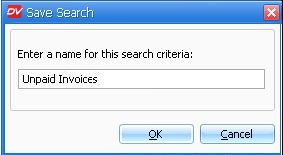
Provide a name for the last performed search.
Click on OK button.
The last performed search gets saved by the provided name on the left panel under Saved Search section.


You can print the list of search results from File > Print menu.

You can also export the files from search result by select the files and clicking File > Export to menu.


Page url: http://www.docsvault.com/online-help/professional/index.html?save_search.html