|
Advance Search |

  
|
|
Advance Search |
|
|
The Advanced Search screen allows you to specify multiple search criteria to find documents stored in Docsvault.
Searching folders and files in Advance Search
Click Search option from Tools menu.
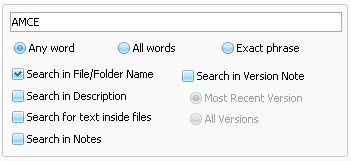
Search text box and keyword options You need to enter the search text in the text box. Text entered here will be used to search against the options selected by you for folders and files.
All word: Displays search result only when all the submitted keyword are matched.
Exact Phrase : Displays search result only when occurrence of exact phrase is found.
You can search the file with the combination of fields in basic search and advance search for quick search. If the search keyword matches with the values entered in these fields, the file name will be displayed in search result.
Docsvault allows you to select one or more of the following options in basic search:
Click 'Search in File Name' to search text against the names of folders and files. If you know only part of the name, you can use wildcard characters like (*, ?) to locate all files that include that part in the name.
Search in Description Click 'Search in Description' to search keywords in description. If the search keyword matches with that in description of a file, the file is displayed in search result.
Search in Text inside files
You can search for a file whose text content matches with that of the search text. This is also called as 'Full Text Searching'.
To have a full text indexing on a file with specific extension you need to have it's corresponding IFilter component installed on the machine where Docsvault is installed.
By default Docsvault search uses filters on .a;.ans;.asc;.asm;.bas;.bat;.bcp;.c;.cc;.cls;.cmd;.cpp;.cs;.csa;.cxx;.dbs;.def;.dic;.dos;.dsp;.dsw;.ext;.faq;.fky;.h;.hpp;.hxx;.i;.ibq;.dl;.idq;.inc;.inf;.ini;.inl;.inx;.jav;.java;.js;.kci;.lgn;.log;.lst;.m3u;.mak;.map;.mdb;.mk;.odh;.odl;.pl;.prc;.rc;.rc2;.rct;.reg;.rgs;.rul;.s;.scc;.sol;.sql;.tab;.tdl;.tiff;.tlh;.tli;.trg;.txt;.udf;udt;.usr;.vbs;.viw;.vspscc;.vsscc;.vssscc;.wri;.wtx
You can also install third party filters to parse other file types.
Search in Notes Click 'Search in Notes' to search the files based on document notes.
Search in Version Note Click 'Search in Version Note' to search files based on version notes.
By default search is performed on the most recent version of files. But you can opt for search on all versions by selecting the 'All Versions'.
If you do not know any of the above information or want to narrow your search further, select one or more of the remaining options:
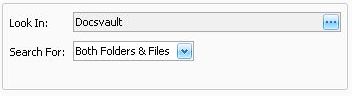
Look in By selecting a specific folder, you may restrict the search for documents to only those documents contained in the selected folder and its sub folders(s), if any.
Search for Select from the list box whether you are looking out for only files or folders or both for quick result.
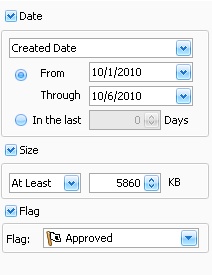
Search By Date If you would like to search for a document based on date criteria, you must select one of the two options in the Date Criteria drop down box:
OR
If you would like to specify a range for In the last... Days :
Use this field to limit your search to documents that are at least, or at most, a set size as measured in Kilobytes.
Search by Flag: Use this field to limit your search to documents that are flagged with the specific flag.
Try using Profile Search criteria to make your search more specific.
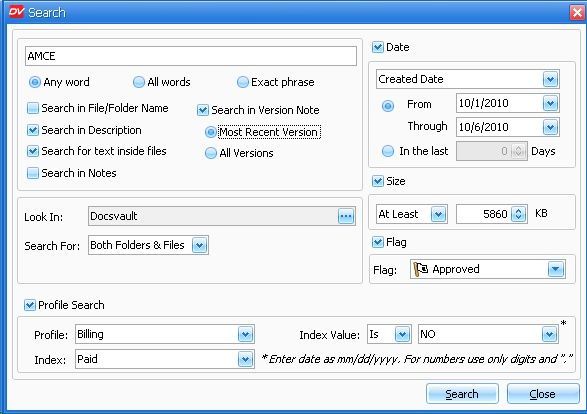
Using this option helps you to generate more finite search results, thus enabling you to further narrow your search results to speed up finding documents according to the assigned custom properties. All the criteria of Profile search and the Basic search uses AND option you filter your search.
To search by custom indexes, perform the following:
For Instance:
The search would only return those documents that fit the custom property criteria, giving you a much shorter list of documents to go through.
Lets summarize the search criteria.
To search by the above criteria.
Profile Is 'Billing' Paid Is 'No'
Page url: http://www.docsvault.com/online-help/professional/index.html?advance_search.html |