|
Quick Search |

  
|
|
Quick Search |
|
|
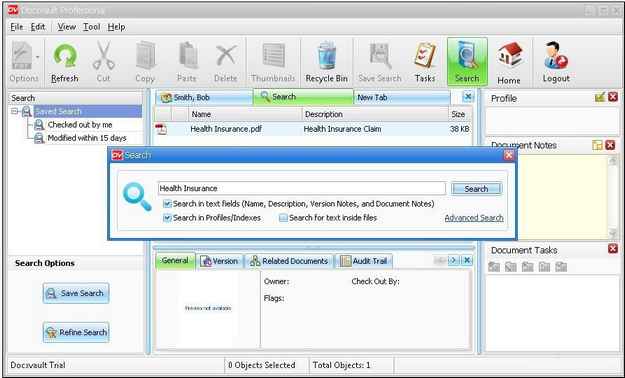
Quick Search Quick search allows you to type in a simple word directly from the main Docsvault window. Docsvault will search for the specified word in the name, description, version notes, document notes, profile/index, and even in the actual content of every document in Docsvault.
To find a file or folder by using the Quick search box
After you execute a search, the list of matching documents appears in the results window.
Page url: http://www.docsvault.com/online-help/professional/index.html?quick_search.html |