|
Inserting Notes Annotation
The most intuitive way to annotate a PDF document is to add an electronic sticky note. It quite similar to the physical sticky notes attached with the hard-copy documents. Notes annotation is more efficient and provides a natural and familiar means by which you can add and share comments on PDF documents without the editing their content.
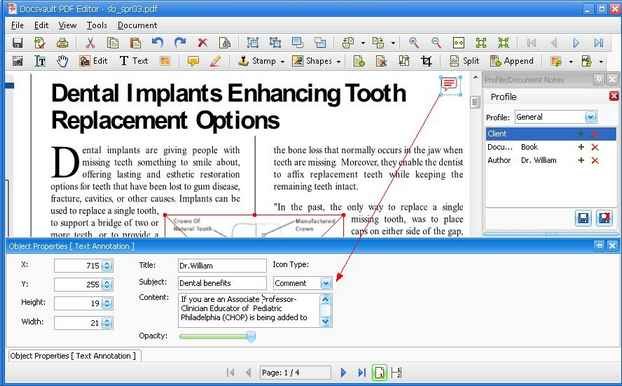
In Docsvault PDF Editor using notes annotation you can easily draw the readers' attention to something.
To add Notes annotation:
| • | Select the Hand tool toolbar button |
| • | Select the Notes annotation tool by either selecting the Notes toolbar button or choose Tools > Notes. |
| • | Click on the page to stick down your note. |
| • | Double click on the Note icon to type your annotation or |
Select the Notes icon and then right click and select Properties or click on the Object Properties panel at the bottom panel or press 'S'
| • | Enter the subject, contents and select the icon for the notes annotation. |
|
Inserting Notes Annotation
|
Notes Icon:
You can change the appearance of the Note icon by selecting the appropriate icon from the list of 'Icon' in Object Properties.

|
Notes icons: Comments, Help, Key, New Paragraph, Note, Paragraph, Insert
|
To edit Notes annotation
| • | Select the Edit Object  button. button. |
| • | Click on the Notes icon and do one of the following |
| o | To move the notes, select the Notes icon and drag it to the new location. |
| o | To resize the notes, select the Notes icon and then drag a corner handle. |
| o | To delete the notes, select the Notes icon and then press Delete key. |
| o | Select Object Properties button from the bottom panel or press S to open Object Properties box. You can change the notes properties such as Title, Subject, Contents and type of Note icon. You can also resize and change the location of notes icon from properties box. |
To edit Notes message
| • | Select the Hand tool button. |
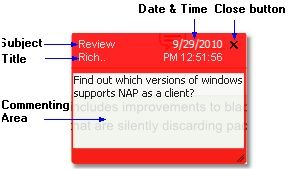
| • | Double click on the Notes icon to open the pop-up Notes box. |
| • | Edit the message into the Notes box. When you are finished, close the window by pressing the close button on the top right corner.
|
|
Notes box
|
Page url:
http://www.docsvault.com/online-help/professional/index.html?creating_sticky_notes.html
|


