|
Inserting Stamp Annotation
In Docsvault PDF Editor, Stamp is another annotation tool that enables you to stamp content into a PDF document. You can choose from a list of pre-defined stamps or you can create your own stamps.
Stamp tool categories
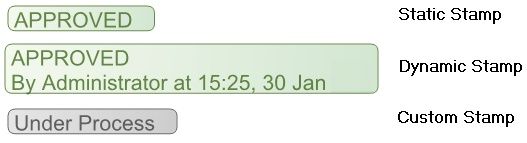
Static Stamp : Pre-defined stamps
Dynamic Stamp : Dynamic stamps obtain date and time information from your system. It allows you to display username, date and time information
on the stamp.
Custom Stamp: You can create new customized stamp. For more information, see Create Custom Stamp
|
Stamp tool categories
|
To add Stamp annotation
| • | Select the Hand tool toolbar button. |
| • | Select the Stamp annotation tool by either selecting the Stamp toolbar button or choose Tools > Stamp. Choose the stamp that you want to add to your document. |
| • | Click on the document page where you want to place the stamp. |
To edit Stamp annotation
| • | Select the Edit Object toolbar button |
| • | Click on the stamp and do one of the following |
| ▪ | To move the stamp, select the stamp and drag it to the new location. |
| ▪ | To resize the stamp, select the stamp and then drag a corner handle. |
| ▪ | To delete the stamp, select the stamp and then right click and select delete key. |
| ▪ | To set the stamp properties, press S or click on the Object Properties button from the bottom panel. |
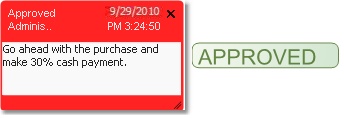
To add notes to a Stamp
| • | Select the Hand tool toolbar button |
| • | In the pop-up note, enter your text message. |
| • | Click the close box on the upper right corner to close the note window. |
|
Add Notes to a Stamp
|
 Tip: Tip:
| • | If you want to edit the notes, double-click on the stamp. |
|
 Note: Note:
| • | You can print the stamps inserted in the document along with the contents by setting it in File > Print Option. |
|
Page url:
http://www.docsvault.com/online-help/professional/index.html?adding_stamps.html
|


