Editing a document by using Split or Extract Pages feature
•Right click on the document and Select PDF Options > Split or Extract Pages.
Extract Pages:
•Under Extract Section, specify the pages to extract.
•Provide the new File name.
•Select the Destination where you want to save the extract pages in Docsvault
•Click the OK button.
•In Import files and folder box, enter a Description.
•Select an appropriate Profile with predefined settings for the new PDF file.
•For more details, see Assigning a Profile to Documents.
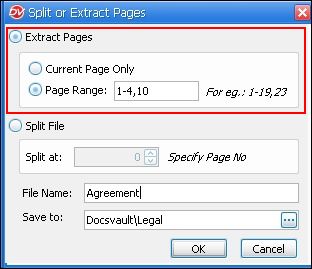 Extract Pages |
Splitting a PDF File
•You can also Split a PDF file by specifying the page number (n) from which the file should be split into a new document.
•Extracting Pages: Users require a minimum 'Read' rights to extract pages and 'New File rights on the folder to create and save the extracted file. •Splitting a File: Users require 'Overwrite/Delete' rights to split an existing file and minimum 'New File rights on the folder to create a new document.
|
