Each document is associated with a Profile. Profiles represent a set of indexes that provide information about the document.
When importing a document to Docsvault, you must specify a profile. Once you have selected the appropriate profile, you may need to enter additional information about the document.
The document profile is stored with the document indexes. To change the profile associated with a document, you can either change it when you check the document in or edit the document properties.
Assigning Profile
Profiles and indexes can be set to documents, as well as to folders. You can assign profile and multiple index values to a document at following instances:
Assigning profile while importing digital documents
•You can assign a profile to the documents in Import files and folders dialog, which is displayed when documents are imported into Docsvault.
 Importing Files/Folders |
•Select a Profile from the drop down list.
•Enter values to the corresponding index. You can add multiple values for a index by clicking on the plus sign.
•Apply to Subfolders will apply the indexes values to the subfolders imported.
•Click on Import button.
•When File Name Template is associated with any Profile, files and folders are automatically named based on the index values. Similarly file descriptions and notes can be populated with a combination of predefined information and/or index values entered by users. |

Assigning profile while scanning
•Profiles and properties fields are present in scanning interface. Assign a profile and corresponding property values before saving the scanned images.
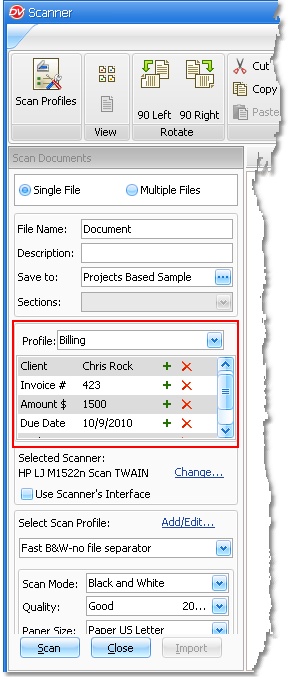 Assigning Profile while scanning |
•Select a document, folder or cabinet from Docsvault Explorer.
•On the right panel, in Document Profile section, click on Edit icon to edit the Profile
• Edit the indexes values if required.
•In case you want to change the Profile. select a Profile from the drop down list.
•Corresponding indexes are displayed in the index-value table. Assign appropriate values to the indexes.
•Click Save button or Alt + S to save the changes.
•To cancel the changes, click on Cancel button or press Alt + C.
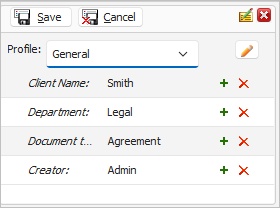 Editing Profile |
•When a document is copied or moved to some other location within Docsvault, the profile associated with it and all its corresponding property values will persist only if the destination folder has the same profile. However, User will Set Available Profile rights have permission to change the profile type assigned to documents.
•You can now also display the Profile properties of your documents in the Details view. For more information, see Customizing Column Configuration.
|
Editing Indexes for Multiple Documents
You can update index values for multiple documents at once.
Steps
•Select multiple files in Docsvault Explorer
•Right-click and select Properties
•Go to the Indexes tab
•Enable the checkbox next to the Indexes tab to activate bulk editing
•Enter or modify the values for the required index fields
•Enable Apply to subfolders and files if you want to apply changes to subfolder and files.
Choose one of the following options:
oBoth Profile and Index values above
Applies both the selected profile and index values to all subfolders and files
oOnly the Index values above irrespective of their current Profile
Applies only index values without changing the existing profile
•Click OK
The updated values will be applied to all selected documents.
Appending Index Values to Multiple Documents
When editing multiple documents, you can also append values instead of overwriting existing ones. This is useful for adding additional tags or information.
Click the plus icon (+) to add new values while retaining existing index values. A blank row is added where you can enter the new values to be added to that index field.
Notes
•Changes apply to all selected documents
•Existing values remain unchanged unless overwritten or appended
•Ensure you have appropriate rights to edit document properties
Assigning Multiple values to an index
You can assign multiple values to an index.
•Click on the Add sign button to add more than one value to an index.
•Click on the Delete sign button delete an index value.
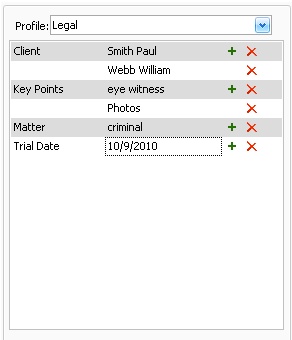 Multiple value to an index |
 Tips:
Tips:
Here are few tips to increase your productivity with Profile index values:
AutoCompete
When a user starts to type in a index field, Docsvault will display options to fill in the field based on earlier typed values. Upon the prompt you can select the options and press [Enter] to accept the value.
Adding a New Static Value
Authorized users with the "Edit Profile" system level right can dynamically add new items to a static list index field while filling out document profile.

Deleting an Index Value
Docsvault allows you to delete previously entered values from the value suggestions list. To delete any value, simply click the red 'x' that appears when you hover your mouse over the value.