Purge Documents
File purge allows you to permanently delete files created or modified before specified date from your Docsvault repository.
 Purge Documents |
When you use the purge feature, all tasks and audit logs related to the files being purged are permanently deleted. |

Visual Themes
If you want the Docsvault user interface to have a different look, you can do so by changing its Theme. There are 30+ different themes to choose from.
•Select the theme of your choice to change the appearance of Docsvault and give a fresh look to your Docsvault Server Manager.
 List of themes |
|
Max File Versioning
Admin can specify the number of file versions to keep. Docsvault will automatically delete older versions if the number of version exceed the maximum number specified.
 Max File Versioning |
Check this option to enable automatically add "Document ID” and “Version Number” to filenames when exporting or attaching files to emails.
MS Office Integration Settings
Overwrite default "Save" button...: Enable this option to override the default Office save dialog with a Docsvault import dialog. Users can still choose to save to their local machine.
Prevent Users from saving to their local computers: Check this option to prevent users to save MS Office documents outside of Docsvault. Users will not be able to save documents anywhere other than Docsvault. (Requires the Docsvault Add-in to remain enabled).
 MS Office Integration Settings |
Document stamping allows to automatically insert text in the footer section of Word and Excel documents. These stamps include important dynamic identifiers like document ID, version number, editor, document owner and other metadata, along with static text.
Only Docsvault administrators can configure the default stamping settings through Docsvault Server Manager. These settings apply system-wide and affect documents created after the settings are changed. Existing documents are not automatically updated.
Users can temporarily disable stamping, such as when printing or creating a PDF without the stamp, or remove the stamp from documents they have permission to edit.
|

Enable and Configure Automatic Stamping
•Click on Edit to configure the settings
•Check the Enable automatic stamping
•Create the footer pattern using text and the available variables.
•Select the required alignment for the stamp: Left, Center, or Right.
•Click Save to apply the settings.
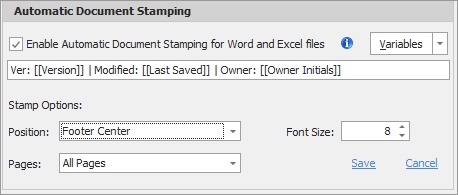
Auto Document Stamping
 Tip: Footer Left alignment is strongly recommended when the document already contains footer content. You can manually adjust the stamp position in an individual document if required.
Available Variables:
You can include the following information in the stamping pattern:
•Document ID - displays the document ID without the FL prefix.
•Version Number
•Date Created
•Date Created (With Time)
•Date Modified (Last Saved)
•Date Modified (Last Saved with Time)
•Owner Initials (Document Owner in Docsvault - usually the user who saves the document in Docsvault first)
•Editor Initials
•File Name
•Index Fields (Custom metadata fields)
Using ID from Index Fields
You can display only the ID portion of an index field, such as Client or Matter, instead of the complete index value. Add the .ID suffix to the index field.
Syntax:
[[Index Field]].ID
Example:
•[[Client]] → 10001 - ABC Corp
•[[Client]].ID → 10001
•The .ID suffix extracts only the first segment of the value, up to the first space. For this to work correctly, the ID must be stored at the beginning of the index value.
|
Examples:
✔10001 - ABC Corp → returns 10001
✗ABC Corp 10001 → will not work correctly
✗Client-10001 ABC → returns Client-10001
Example Stamping Pattern:
[[Client]].ID - [[Matter]] - updated [[Last Saved]] - [[Owner Initials]]
Example Result:
10010 - 6001 - Contract Review - updated 04/02/2026 - Jameson
•Click Edit to change the stamping Options.
Stamp Appearance Settings:
Administrators can define how and where stamps appear in documents.
Stamp Position Options:
Select one of the following positions:
oFooter Left
oFooter Center
oFooter Right
Tip: If the document already contains footer content, Footer Left is recommended. You can also manually move the stamp in an individual document to avoid overlapping existing footer content.
Font Size:
Select a suitable font size (commonly 8pt to 12pt) for readability without disrupting layout.
Apply Stamp To:
oAll Pages
oFirst Page Only
oOdd Pages
oEven Pages
Click Save to save the settings.
Tip: If the document already contains footer content, use Left alignment and adjust the position manually as needed to avoid overlapping existing content
•If an existing footer is present, the stamp is added after it and matches the footer text size.
|
Customizing Stamping for an Individual Document
You can manually move the stamp in an individual Word or Excel document to place it in a more appropriate location. Docsvault preserves the position you set and does not automatically reposition the stamp.
Note: After changing the footer or stamp position in an individual document, check in the document to save the changes. When the document is checked out again, the updated stamp position is displayed.
Users can manage stamping at the individual document level through the Docsvault Microsoft Office Add-ins.