Create a new folder
Docsvault allows Users to create a folder or a group of folders at the same time. Folder Structures can be created using Folder Template.
This section will cover:
•Creating a single normal folder
•Creating a group of folders using template
•Creating folders using mandatory folder template
•Users can create a folder in only those cabinets to which they have New Folder rights.
|

For example: Neil has already created the cabinet Legal. He wants to create a folder 'Active Cases' which will include all the active cases.
|
•In the Tree view panel, select a cabinet under which you want to create your new folder.
Right-click on destination cabinet/folder from tree view or list view panel to get the popup menu. Click on New Folder Or
Right click at an empty region in the list view panel, below the list of documents to display the popup menu Or
Click on New Folder Or
Click on the New icon on the tool bar.
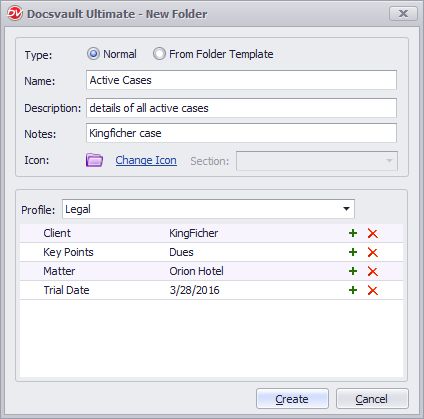 Create a new folder |
•Select Normal button to create a single folder.
•After providing Folder Name and Description.
•Add Notes for your folder.
•Click Change Icon, to change the icon of the folder. You can add your own icon to represent a folder for easy identification.
•Profile: In Profiles, select profile that are to be made available for documents stored in this folder. For addition information,
see Profiles and Indexes option.
•Click on Save button to create a folder.
•Likewise, you can also create sub-folders within this folder.
•The folder, by default, inherits the cabinet's properties and security. Changes can be made to the Cabinet Properties in the Cabinet Properties Dialog box.
|

To creating batch folders using CSV file
Administrators can create new folders in batch using data from simple CSV file.
•In the Tree view panel, select a cabinet under which you want to create folders.
•On the File menu, click on New > Batch Folders Creations
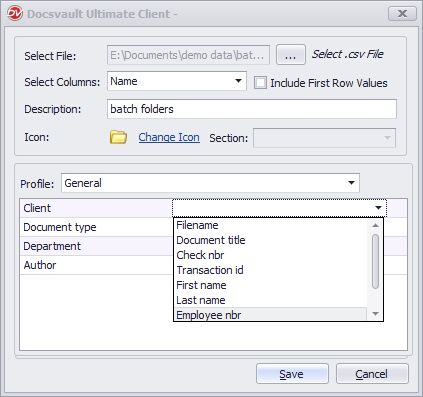 Create batch folders |
•Select File: Browse to select .csv file
•Select Columns: Map the column from the drop list for the Folder name. Check 'Include First Row Values' if you wish to include its values for folder creation.
•Profile: Select Profile form the list and map the indexes with the columns from the drop list.
•Click on Save button to create batch folders.
Sample file Structure:
This is a sample CSV file structure that can be used to create batch folders.
Sr.No, FolderName, Client, DocumentType
1, Folder_1, ACME, Agreements
2, Folder_2, HBO, Communications
.. ..
10, Folder_10, L&T, Documents
Note: When cabinets are set to use any particular folder template, the batch folder creation will create entire folder structures corresponding to restricted folder template.
To creating a group of folders using Template
Creating Folder Structure from Folder Template allows users to create a group of folders at the same time. A Folder Template can be applied to any cabinet or folder. When you apply a folder template, all of the folders in the template will be added to the cabinet/folder.
From Folder Template:
Folder Template list the names of the templates to created a Folder Structure. They can be used to create Folder Structures in Cabinets or Folders as a sub-folder structure of a Folder.
Docsvault supplies some basic Folder Structure Templates in the Administration > Templates > Folder Template. You can create your own multiple templates of folder and file structures with properties like security, allowed profiles and audit trail settings and add them to the Folder Template List supplied. For more information, see Folder Template.
•In the Tree view panel, select a cabinet under which you want to create your new folder.
•Bring up the New Folder dialog box in one of the following ways:
On the File menu, click on New Folder Or
Right-click on destination cabinet/folder from tree view or list view panel to get the popup menu. Click on New Folder Or
Right click at an empty region in the list view panel, below the list of documents to display the popup menu. Click on New Folder Or Click on the New icon on the tool bar.
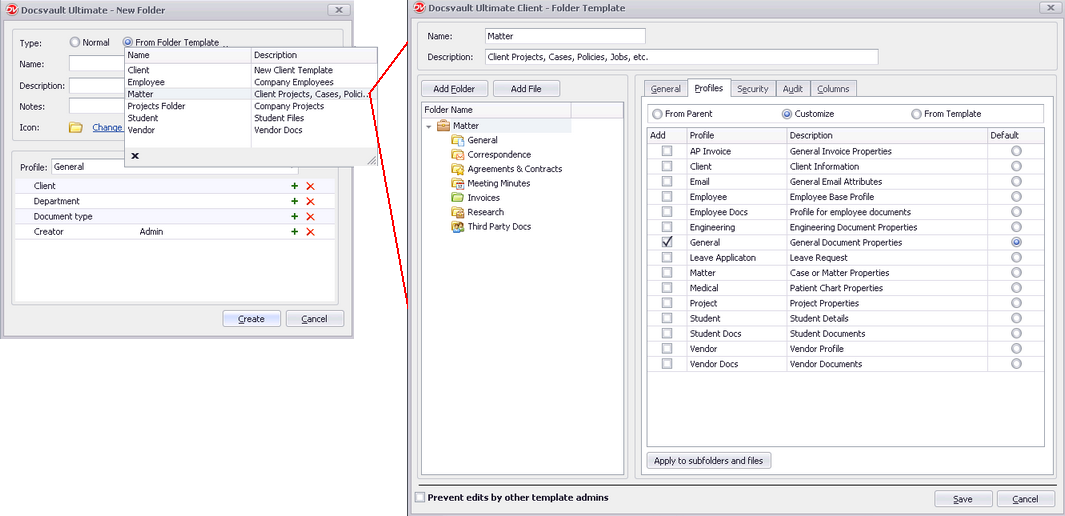 Creating Folder Structure using Template |
•Select From Folder Template button to create a preset folder structure.
•Enter the folder name and description.
•Select the folder icon for easy identification.
•Folder Section, if the folder section is set in the parent folder, you will be allowed to select the section under which you want to create the folder structure.
•Profile will display the default Profile as set in the Folder Template selected above. You will be able to edit the profile and indexes values from the Folder Properties dialog box.
•Click on Save button to create a folder structure.
Creating a group of folders using mandatory folder template
Administrator can restrict users to create folder structure using predefine folder template only.
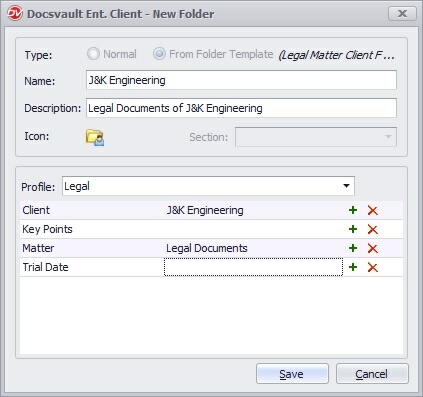 |
•Enter the folder name and description.
•Profile will display the default Profile as set in the Folder Template selected above. You will be able to edit the profile and indexes values from the Folder Properties dialog box.
•Click on Save button to create a folder structure at the root level of a cabinet.