How do I integrate Docsvault with Microsoft Teams?
You can use certain features of Docsvault within Microsoft Teams out-of-the-box without any complex configurations. These include:
Allow Teams users to drop documents in Docsvault
Let Teams users fill out web forms to collect data in Docsvault
Display eForms Reports in Teams
Below are the details on how to share each of the above in MS Teams.
Sharing Docsvault Documents in Teams
•In Docsvault, create a Public Share link for documents that you want to share in Teams
•Open teams and select the channel on which you would like to share Docsvault documents.
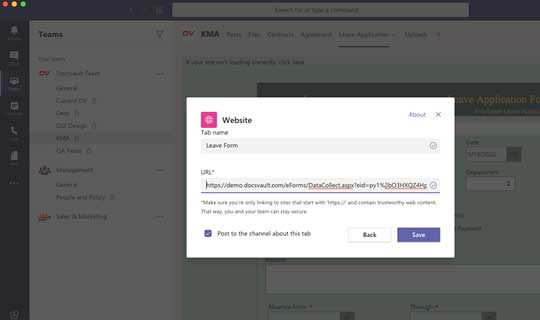
•On the channel page, click on ‘+’ (Add a Tab) button next to the ‘Posts’ and ‘Files’ tab.
•Search for ‘Website’ and select the Website tab from the filtered list.
•Enter a name for the Tab which would be displayed in the tab list.
•Enter the Docsvault Public Share URL of the document to be shared.
•Click on Save.
 |
Editing Name or URLs in Teams
•To edit the URL, click on the down-arrow next to the Tab and select the Settings option.
•Update the URL displayed
•To change the name of the Tab, click on the down-arrow next to the Tab and select the Rename option
•Update the name displayed
Remove Tab in Teams
•To remove the Tab, click on the down-arrow next to the Tab and select the Remove option
•Confirm the removal by clicking on the Remove button
How to create a Public Share Link in Docsvault?
•Login into Docsvault and navigate to the Document/Folder you want to share
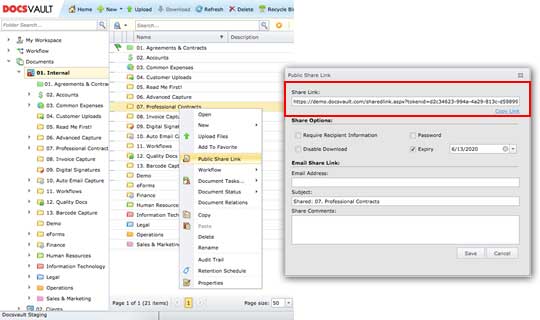
•Right click on the document and select the ‘Public Share Link’ option
•Copy the public share link available for the document
•Login into Teams and share the link. See ‘Sharing URLs in Teams’ section above
 |
Allow Teams users to drop documents in Docsvault
•Login into Docsvault and open the My Workspace node
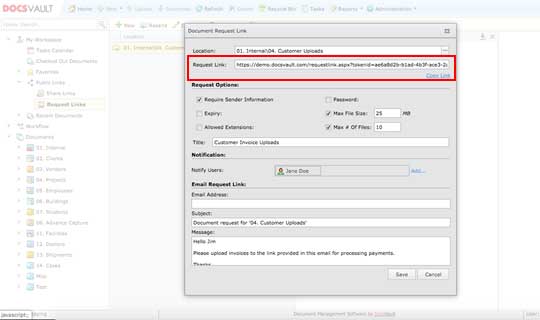
•Select ‘Public Links’ and then ‘Request Links’ option.
•Click New button and navigate to the folder where you want the uploaded files to be stored.
•On the Document Request Link screen copy the request link by clicking Copy link.
•Login into Teams and share the link. See ‘Sharing URLs in Teams’ section above.
 |
Let Teams users fill out web forms to collect data in Docsvault
•Login into Docsvault and from Administration menu, select ‘Manage eForms’
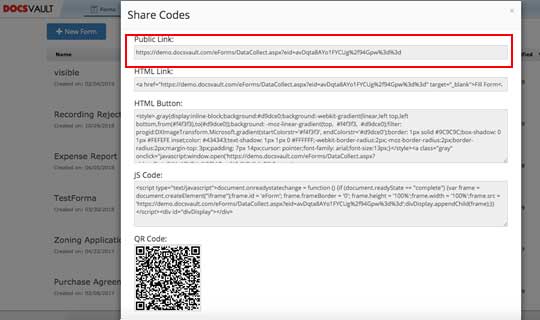
•From any of the forms in the list, select the ‘Share’ option.
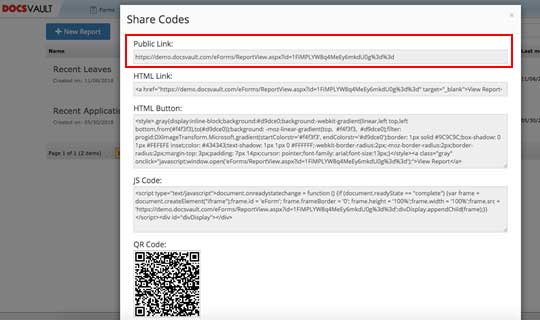
•Copy the link from the Public Link available for the e-form.
•Login into Teams and share the link. See ‘Sharing URLs in Teams’ section above.
|
Display eForms Reports in Teams
•Login into Docsvault and from Administration menu, select ‘Manage EForms’
•From any of the forms in the list, select the ‘Reports’ option.
•Copy the link from the Public Link available for the e-form.
•Login into Teams and share the link. See ‘Sharing URLs in Teams’ section above.
|