After applying the initial configuring for a profile, you can define how each index field should be extracted. These settings help AI identify and populate values for individual fields.
Select Index Field
From the left panel, select the index field you want to configure. You can configure:
•Existing Index Fields
•Additional Fields created for AI extraction
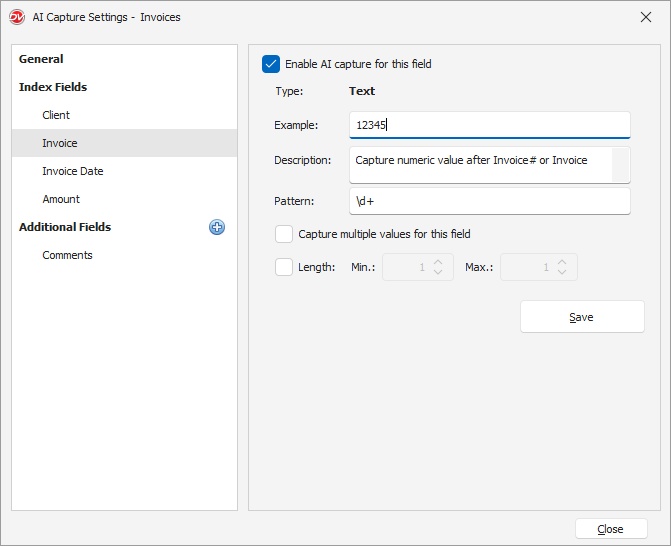 AI Capture Index Fields Settings |
•Index Fields: When creating a profile, name index fields appropriately as it plays an important role in AI based capture •Description Field: This is where you can enter additional instructions on how to locate the field value on the document •Experiment: Since AI capture does not work on hard rules, you may need to try out different Field Names and Field Descriptions to get the desired results.
|

Enable AI Capture for this Field
Enable this option to allow AI Capture to extract data for the selected field. If disabled, the field will be ignored during the capture process.
Field Type
Displays the field type. This is automatically determined based on the index field type. Supported types include:
•Text
•Numeric
•Date
•Static (List)
Different options are displayed depending on the selected field type.
Common Options
These options are available for most field types.
Example
Provide a sample value to help AI understand the expected format.
Examples:
•12345
•PO-1022
•ACME LLC
•+1 (123) 456-7890
Providing examples improves extraction accuracy.
Description
Enter keywords or phrases used to identify the field.
Examples:
•Capture the value after Invoice# or Invoice:
•Capture the alphanumeric PO number formatted like PO-12345.
•Capture Customer Name below To or Bill To
•Capture the currency amount formatted like 1,250.00.
•Capture the percentage value after Sales Tax (e.g., Sales Tax 8% → 8%).
AI uses these hints to locate matching values in the document.
Capture Multiple Values for this Field
Enable this option if the document may contain multiple values for the same field.
Example:
•Multiple PO numbers
•Multiple items
•Multiple IDs
Text and Static Field Options
Pattern
Usually left blank but may help in certainly cases to specify a pattern or format for the expected value. This option is available for Text and Static type fields.
Examples:
Label |
Values to be Captured |
Regular Expression in Pattern |
Invoice - INV + 5 digits (capture digits only) |
INV 12345, INV-12345, inv#12345 |
(?i)INV[\s#:.-]*(\d{5}) |
Company / Client Name |
ACME LLC, Docsvault Inc, ABC Corporation |
\b[A-Za-z][A-Za-z\s.&,-]{2,}\b |
Serial Number (5 digits) |
93456 |
\b\d{5}\b |
Phone (USA format) |
+1 (123) 456-7890, 123-456-7890, 1234567890 |
\b(?:\+1[-.\s]?)?\(?\d{3}\)?[-.\s]?\d{3}[-.\s]?\d{4}\b |
Social Security Number (SSN) |
123-45-6789 |
\b\d{3}-\d{2}-\d{4}\b |
File ID — prefix "FL" + 8 digits |
FL10000111 |
\bFL\d{8}\b |
Use this when values follow a consistent format.
Length
Define minimum and maximum value length. This option is available for Text and Static type fields.
•Min — Minimum number of characters
•Max — Maximum number of characters
This helps restrict incorrect matches.
Numeric Field Options
Range
This option is available for Numeric type fields. It restricts numeric values within a defined range.
•Min — Minimum allowed value
•Max — Maximum allowed value
Useful for:
•Invoice amounts
•Quantities
•Page numbers
Date Field Options
Date Format
Select the date format as it appears on the document. Leave Blank when dates can appear in different formats on the document.
Examples:
•dd/MM/yyyy
•MM/dd/yyyy
•yyyy-MM-dd
AI Capture uses this format to correctly interpret dates.
Common use cases:
•Invoice Date
•Due Date
•Order Date
Static Field - Matching and Mapping
For Static type fields, you can define mappings to match captured text from the document to predefined values of that static field. This is useful when valued captured from the document differ from the values in the static field.
Mappings allow AI Capture to identify text in the document and assign the corresponding index value.
Example:
Index Value: 10001 - Docsvault
Captured Text:
EDA dba Docsvault
EDA5856
EIN 75-8956423
If AI finds any of the above values, it maps to: 10001 - Docsvault
Matching Options
Use the Matching dropdown to control how captured text is compared.
•Exact:
The captured text must exactly match the mapped value.
Example: "Docsvault" matches only "Docsvault"
•Partial:
The captured text will be matched with index values as per specified matching Score. This is useful when the value to be captured can appear in different spelling variations or when only partial words may be captured from the document.
Example: "Docsvault Inc." or "Docsvault LLC" will match "Docsvault"
Enable Mappings
•Select a Static type index field (e.g Client/Vendor list)
•Enable Captured text is different than index field text
•Click Edit Mappings
The Field Mappings window will open.
Field Mappings Window
The mapping grid contains two columns:
Index value: Displays predefined values from the index field.
Captured text from document: Specify text that may appear in the document and should map to the selected index value.
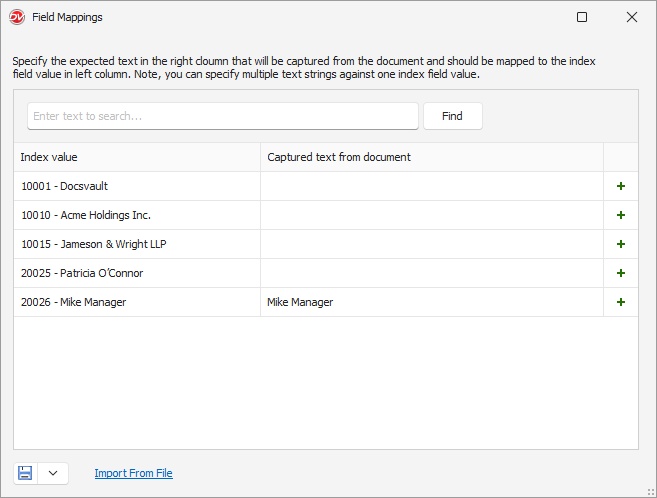 AI Capture Fields Mappings |
Add Mapping
•Click the + icon next to an index value
•Enter the text expected in the document
•Press Enter to add the mapping
You can add multiple captured values for a single index value.
Import Mappings
Click Import From File to load mappings from an external file. This is useful when configuring large value lists that are easily available as excel/csv files.
Save Mappings
•Click Save to apply mappings.
•Click Close to exit the mapping window.
Mappings are now used during AI Capture to automatically assign correct index values.
•When new values are added to the static index field, you will need to come back to this window to provide appropriate corresponding mapping values. •You can export the current mappings for the field as a csv/xls file using the 'Export' button in bottom left corner. This can serve as a backup of the current list in case you need to reconfigure this field or use it in other fields in future. |

Save Settings
It is important to save settings for each field individually before moving on to the next field. Click Save to apply the field configuration.