You can configure AI Capture Settings to automatically extract data from documents based on the selected profile.
AI Capture Settings
•Go to Administration > Edit Profile/Indexes
•Select the profile to associate with AI Capture
•Click AI Capture Settings
•The AI Capture Settings dialog opens
General Settings
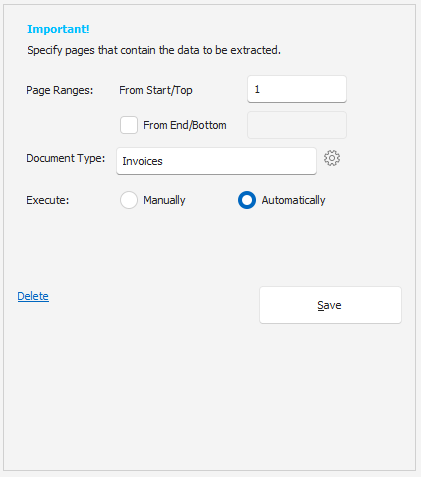 AI Capture General Settings |
When configuring a new AI Capture job for a profile, you will see the dialog above asking for important information about your capture.
Page Ranges
To increase the accuracy and speed of data capture, it is very important to specify the pages that contain the data to be extracted.
From Start/Top:
Specify pages starting from the beginning of the document.
Examples:
o1 - First page only
o2-3 - Pages 2 & 3
o1,4,7 - Pages 1, 4 & 7
From End/Bottom (Optional):
If the fields you need to capture are at the end of any document with variable pages, specify pages starting from the end of the document. Otherwise you may leave this field unspecified.
Examples:
o1 - Last page
o2 - Second last page
o1-2 - Last two pages
Document Type
Specify the type of document to help AI understand the content. Example: Invoice, Receipt, Ticket, Order etc.
Click the gear icon to provide additional instructions such as:
•Description of the document
•Expected fields or values
•Formatting guidance
•Information to ignore
Execute
Choose how AI Capture runs:
•Manual:
AI Capture runs only when the user clicks the AI Capture button in the Import dialog.
•Automatically:
AI Capture runs automatically when the associated profile is selected.
•When using Automatically, ensure the destination folder has the associated profile set as the default profile. If you manually change the profile during import, you must click the AI Capture button to execute the capture process. |

Save Settings
•Click Save and Continue to proceed with further essential configuration.