Importing Documents Directly to a Folder
You can import files or folders from local/network drives or any externally connected drives. When you import digital files, a copy of the file or folder is stored in Docsvault.
Steps to Import Documents
•Open the 'Import Documents' Dialog Box:
oFrom the File menu: Click on Import Docs.
oUsing the right-click menu: Right-click anywhere and select Import Docs.
oFrom the toolbar: Clieck on the 'Import Docs' icon.
•Select the Destination Folder:
oChoose the cabinet or folder in which you want to store the imported documents in Docsvault Explorer.
•Select Files or Folders to Import:
oIn the Import Documents dialog box, select the files or folders
oClick on OK to proceed.
Import Dialog Box Overview
•Left Section: Displays the selected files and folders.
oUse the Add or Remove buttons to modify your import list.
oTo rename a file/folder before importing, right click and select Rename.
•Right Section: Preview PDFs and images.
oToggle the preview On/Off using the Preview button.
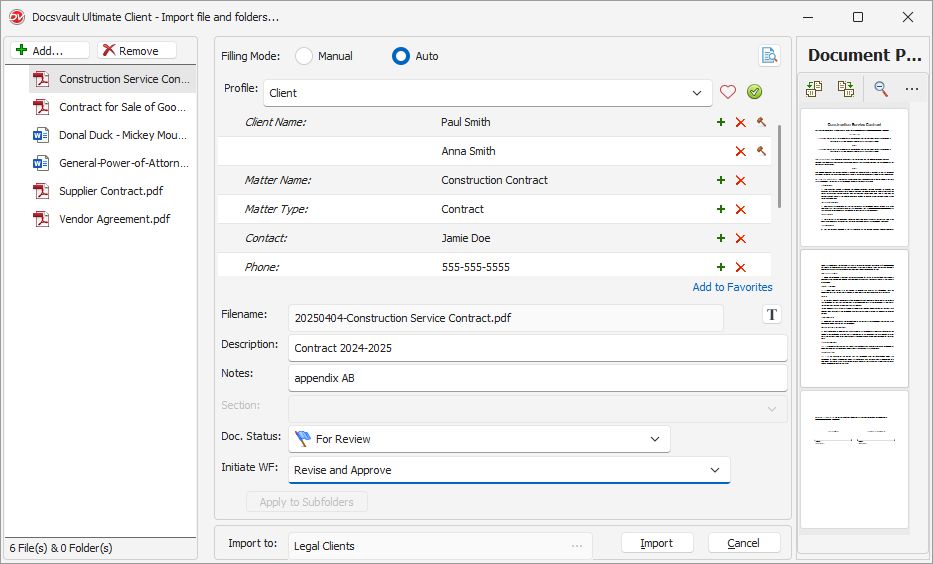 Importing Files/Folders |
•Middle Section: Add Profile and Indexes for categorization.
oChoose between Manual or Auto Profile.
oManual Profile allows you to define searchable indexes for each documents. For more details,see Profile and Indexes section.
oAuto Profile classifies documents using predefined template rules based on index values. For more information see, Filing Documents.
oQuickly Access to Profile Values
▪Save frequency used Profile values as Favorites for quick selection during profiling. Click on Add to Favorites link.
▪Click on heart icon to open Favourite & Recent dialog, where you can apply favorites or recent entries - making re-entering repetitive index values easier.
oIf you wish to have same information to apply for all the files or folders, click on tick icon.
•Filename:
oEnter an appropriate filename.
oUse the Filename Template  icon to create standard naming patterns. For more details, see Filename Template.
o Press F4 to open a dropdown of recent/predefined filenames.
•Description and Notes.
oAdd optional details for reference.
•Tagging
oAssign Document Status and Sections (virtual folder tabs for better organization).
oSee Creating Folder Sections for more details.
•Workflow Integration
oYou can initiate a Workflow for each file or folder while importing.
•Apply different profiles and sections for each folder.
oSelect the folder, enter the details and select 'Apply to Subfolders' button.
•Click on Import button to begin importing your documents.
OCR (Optical Character Recognition)
•If you import an image-only PDF, convert it into searchable PDF using Docsvault's built-in OCR module.
•See Working with PDF Documents for details.
•Administrators or users with 'Create Profiles/Indexes' rights can define custom profiles.
|

•File Size and Character Limit: oMax upload file size limit for an individual document: 1999 MB. oEnsure filenames do not exceed 254 characters due to OS limitations.
•Import Restrictions: oYou cannot import any link/shortcut files into Docsvault. oDocsvault will display the list of files/folders that could not be imported for any reason. •Editing Profile Information Post-Import oAdd or change a document’s profile at import time or later using Edit > Properties. oQuickly edit profiles of scanned documents and image from Document View window.
•Spell Check for Text Fields oSpell check is available for all text files, including filenames, descriptions, notes. oUsers can enable or disable spell check in their Tools > Options window.
|
