The Filename Templates feature in Docsvault ensures consistency in file naming across different users. It allows users to select predefined filenames when saving files, helping to maintain a structured and organized document management system.
Create a Filename Template
You can create standardized filename patterns using:
•Static Text: Fixed text that remains unchanged in every filename.
•Dynamic Values: Automatically generated values, such as date/time stamps.
•Index Field Values: Metadata-driven filenames based on values user input for index fields.
Steps to Create a Filename Template
•Open Docsvault Import Documents dialog Box
•Click on Template icon next to Filename.
•Click on the Add button.
•Select the Profile from the dropdown list.
•Define the structure of the filename by:
oAdding static text (e.g., "Invoice_" or "Report_").
oIncluding dynamic values (e.g., date, original filename).
oUsing index values to pull metadata of the selected document profile.
•Specify whether it should be private or public.
oEnable Public checkbox to share the template to other users in the system. If unchecked, it remains private for personal use.
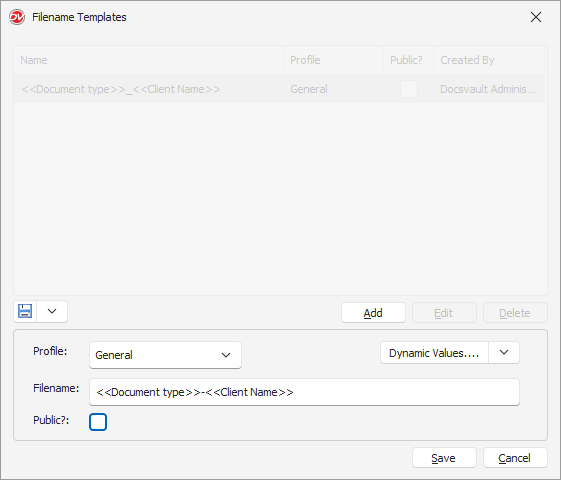 Create Filename Template |
Using a Filename Template When Importing Documents
When importing a document in Docsvault:
•Press F4 in the Filename field (or click the down arrow button) to open a dropdown of recent/predefined filename suggestion. Filenames marked with a lowercase ‘r’ indicate recently entered names, while an uppercase ‘T’ denotes suggestions based on predefined templates.
•The system will automatically generate the filename based on the rules defined in the template for the selected profile.
•Review and modify the filename before finalizing the save.
•Once the filenames dialog box is open, you may even start typing in the filename field to filter out the possible matches.
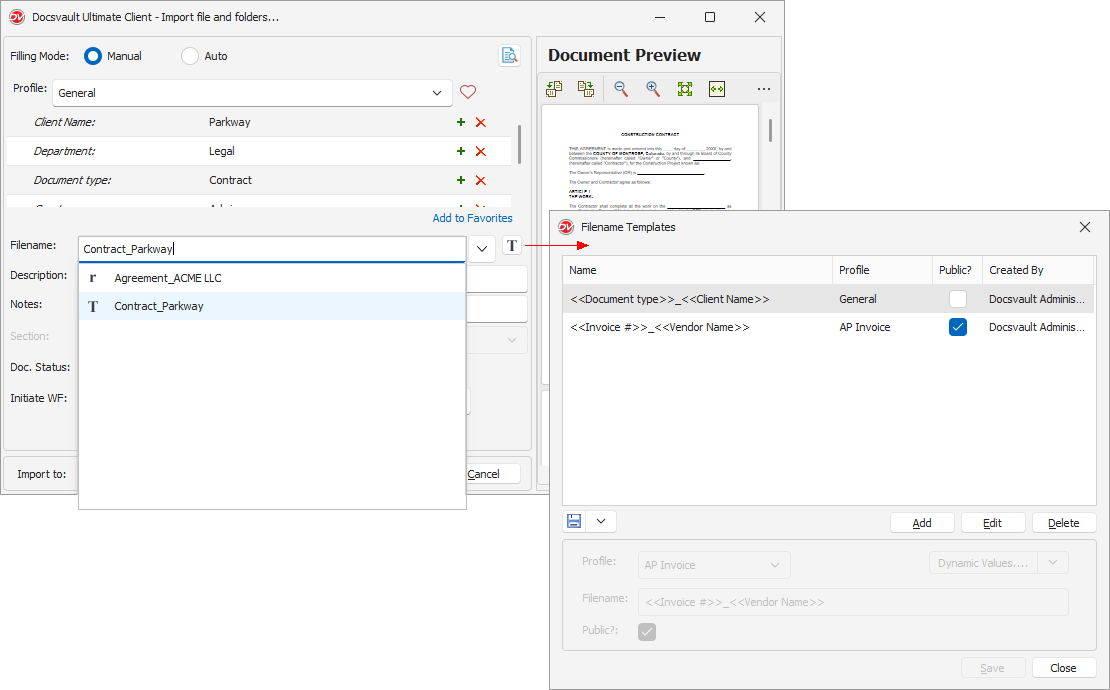 Manage and Apply Filename Template |
Managing Filename Templates
•In the Import Document dialog box, click on Template icon next to Filename to view all available filename templates.
•Edit Templates: Select the template and modify it to updated naming conventions.
•Delete Templates: Remove outdated or unnecessary templates.
•Sharing Templates: Templates can be designated as public or private, depending on user access needs.
•Creators, Admins and users with "Create Template" rights can edit and delete publicly shared templates.
•Private templates can only be edited and deleted by their creators.
|
