Staying organized is critical, especially when managing thousands of documents in a multi-user system. A structured filing system ensures consistency and efficiency. Docsvault's Filing Template feature helps create a standardized document filing structure with consistent file and folder names based on index values entered during document import.
With the latest upgrade v.16, the Filing Template system now enforces a strict structure to maintain document consistency and organization.
Key Features of the Strict Filing Template Structure
•Enforced Folder Structure: Filing Templates now follow a predefined, non-editable layout to ensure uniformity.
•Restricted Modifications: Folders created using a Filing Template cannot be changed or restructured.
•Index-Based Naming: Folder names can only be edited through assigned index values, preventing manual renaming.
•Restricted Additions: New folders and files cannot be added outside the predefined Filing Template structure, maintaining structured document management.
How Filing Templates Work
When importing documents into Docsvault, the Filing Template dynamically generates a structured filing system. For instance, in a legal client-matter context, documents can be sorted into a predefined folder structure:
•Client Folder: "Smith & Associates"
•Matter Folder: "Estate Planning"
If the designated folder does not exist, the Filing Template will create it dynamically based on indexed attributes.
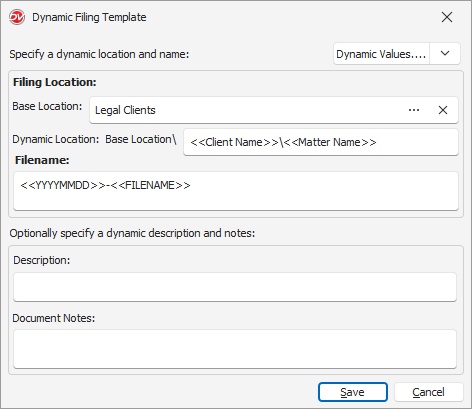
•In Profile dialog, click Filing template button.
•Set the Base Location: Define the root location within Docsvault where documents will be stored.
Example: Legal Clients
Note: Auto-filing requires a defined base location; otherwise, it will not function.
•Define Dynamic Locations: Use dynamic fields from the 'Dynamic Values' drop-down list.
Example: Selecting index field <<Client>> and <<Matter>> will automatically file documents into the correct folders.
Example Output: Legal Clients\Smith & Associates\Estate Planning\
•Configure File name, Description and Notes.
oUse dynamic index values to structure file names and descriptions.
Example dynamic values:
▪Client Name
▪Matter Name
▪Attorney Assigned
▪Case Number
▪Document Type
▪Date (Month/Year Extraction)
oApply Dynamic Date/ Time Formatting:
▪Utilize date/time values for precise naming
Example: <<YYYY-MM-DD>>, <<HHmmss>>
oOriginal Filename: Include the original filename as part of a naming convention if needed.
oAdd prefixes or suffixes as required.
•Click Save to save the Filing template.
The dynamic values once assigned during the import process will prevent further editing of the file name, description and notes.
Example Use Case in Legal Industry
Scenario: Organizing Legal Documents for a Client
A law firm manages multiple clients and their respective legal matters. Using the Filing Template, they can automatically structure their document repository as follows:
 |
Base Location: Legal Clients
Client Name: "Smith & Associates"
Matter Name: "Estate Planning"
Filename: "Smith_Contract_Draft.pdf"
Final Document Path and Filename:
Legal Clients\Smith & Associates\Estate Planning\Contract Draft\2024-03-15_Smith_Contract_Draft.pdf
This structure ensures that all legal documents are consistently filed, making retrieval and organization seamless.
|
Autofile Profiles can be selected as default for any folder in the available profiles settings. It can also be specified in predefined ‘Folder Templates’ and ‘Profile Templates’.
•When the specified Base location does not allow saving files due to folder restrictions set at cabinet level, you must either remove the restrictions at the base location or specify at least one mandatory index field for the dynamic location. The system will create the entire folder structures corresponding to restricted folder template and auto file the files in the dynamic location specified.
|

Administrators and users with system right 'Create Profile/Indexes' can apply auto-filing to document profile by configuring Filing Templates.
Document Profiles can be configured to automatically name and file documents in Docsvault based on rules set on index values. Auto-filing can work when importing and profiling a document from many places like the Drop Zone, Import Documents dialog, the Microsoft Office add-ins integration, right Profile panel, Document Properties dialog, the Scan interface, and the Filing Area. Documents are then auto named and filed into the appropriate folders based on predefined rules set in Filing Template of a Profile. This feature helps in maintaining consistent file names, reduce misfiling and makes bulk importing of documents very easy.
To automatically file documents from the Import Document dialog
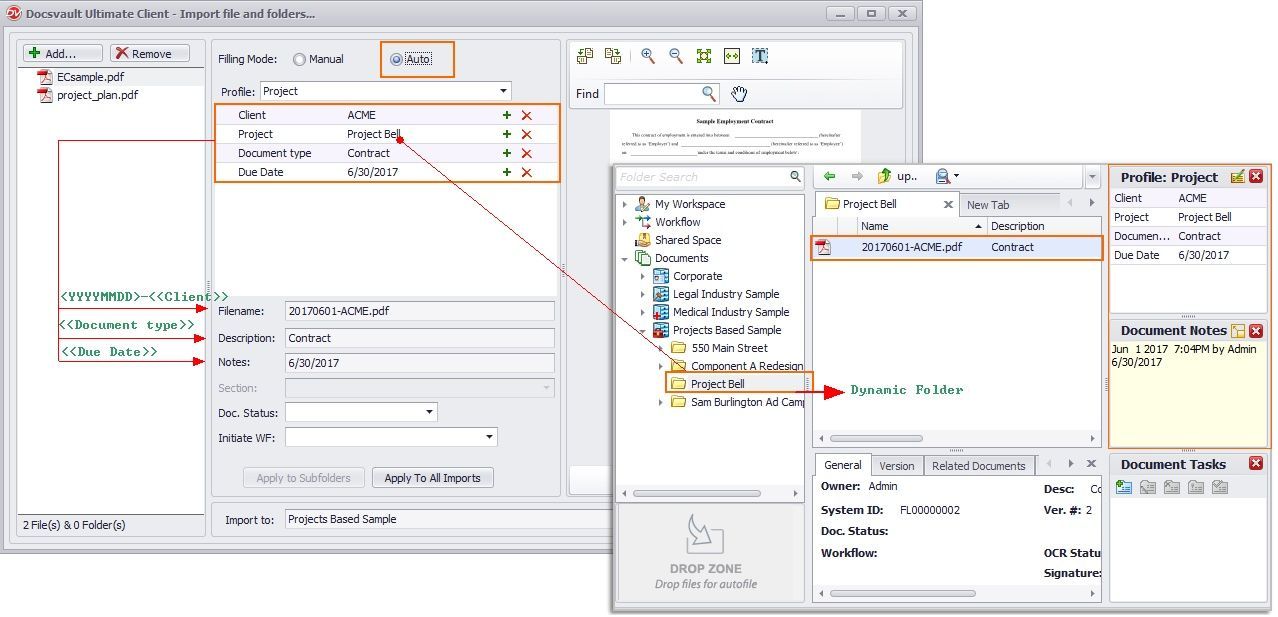
•After Filing Template has been applied to any profile, Auto filing option would be enabled
•On choosing Auto option, all the available Profiles with auto-filing would be displayed in the drop-down list for selection.
•As in the image below, when a user assigns profile to a file, the system will automatically detect/create a destination folder based on index values. This will also automatically name the file, add description and notes based on rules set in the Filing template of the selected Profile.
 |
•For General which is a default profile, you can only set file-naming, description and notes based on the index values. Auto Filing can't be configured in case of General profile.
|