This Session Covers:
How do Users setup Two-Factor Authentication?
Two-Factor Authentication Subsequent Logins
Two-Factor Authentication Security Rules
Managing Two-Factor Authentication at the User Level
How do Users setup Two-Factor Authentication?
After the admins have enabled 2FA using an authenticator app, Docsvault will prompt users to setup their authenticator app when logging into their desktop or web client application the next time.
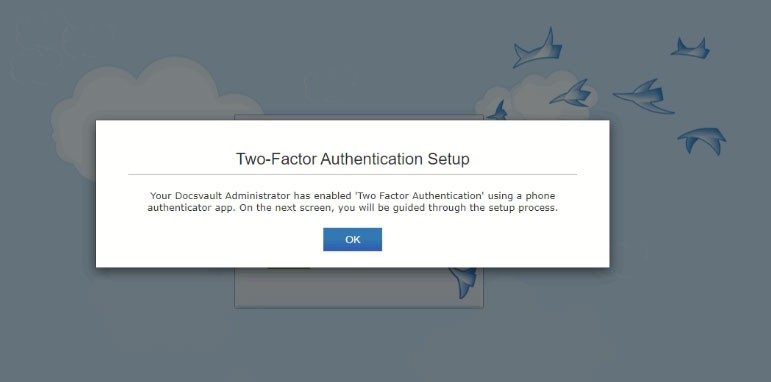
Users can configure two-factor authentication using authenticator apps like Google Authenticator, Microsoft Authenticator, Authy, etc. on their smartphone. These applications are available for free for both Android and iOS devices.
Example of configuring 2FA on an Authenticator App
1.First, install an authentication app like "Microsoft Authenticator" on your phone.
2.Log into the Docsvault application and enter your username and password as usual.
3.You will be prompted to configure two-factor authentication on your mobile.
4.Launch the Authenticator app on your phone.
5.To configure your account in your Authenticator App, scan the barcode image or manually enter the 16-character "secret key" displayed on the screen. Do not copy or share the secret key with anyone.
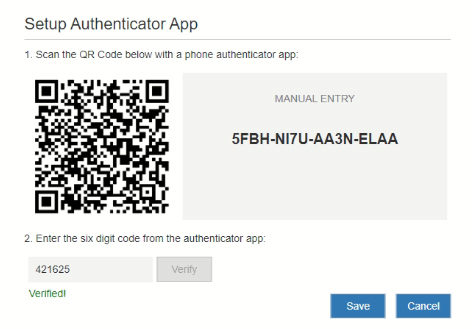
6.Enter the 6-digit authentication code that is generated by your Authenticator app.
7.Click Verify.
8.Once verified, click on the Save button.
9.Your Authenticator app is successfully configured for your account.
•The Authentication Code should be entered within the 30-second period. Otherwise, you should enter the next non-expired Authentication code displayed in the Authenticator application. The code expiration is tracked in the Authenticator application.
•The Docsvault Account should be displayed on the Accounts list in your Authenticator app. |

Two-Factor Authentication Subsequent Logins
Once you have set up two-factor authentication, you will have to walk through 2 steps to access your Docsvault system each time you login on a new device.
•Provide credentials i.e. username and password, as usual.
•Depending on how your Admin has configured 2FA, you can get your verification code either on your:
oAuthenticator App (default) OR
oEmail
•Enter the Verification Code (TOTP) generated in your Authenticator app before it expires.
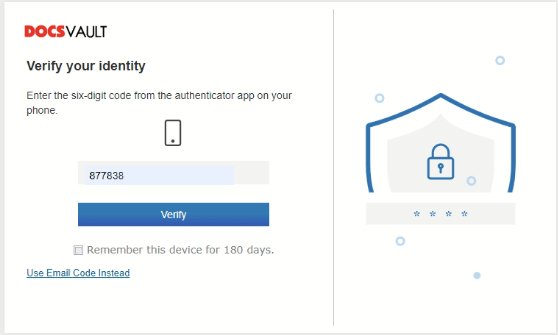
•If you have added your Docsvault account to the Authenticator app, but the generated code does not work, make sure that the Authentication Code has not expired. If it has, enter a new valid authentication code while it is valid. |
Use Email Code Instead
If you wish to get the verification code in your email, click on Use Email Code Instead. This option will only be visible if it has been enabled by your Admin.
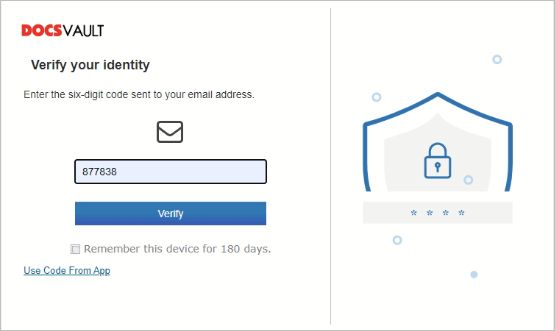
•Enter the six-digit one-time Verification Code received in your email.
•Click on Verify.
Verification Codes are sent in real-time, and the user typically waits just a few moments to receive them.Verification Codes delivered through email stay valid for 10 mins and is a widely used form of 2FA. Many organizations choose this option for user convenience, ease of administration, and low associated costs.
Remember this device for x days Option
If you are on a trusted device, you may skip entering Verification Codes for your subsequent logins by checking this option. Docsvault will not prompt you for second factor authentication for the duration specified by the Admins in the 2FA configuration.
Two-Factor Authentication Security Rules
• If a user fails two-factor authentication verification 5 times, the user will be sent back to the login page to start the process again.
•If a user fails the two-factor authentication verification cycle (entering the credentials and then the code) for the number of times defined by the Admin in Login Lockout Settings, the User Account will be locked. To unlock it, please contact your Docsvault Admin.
Managing Two-Factor Authentication at the User Level
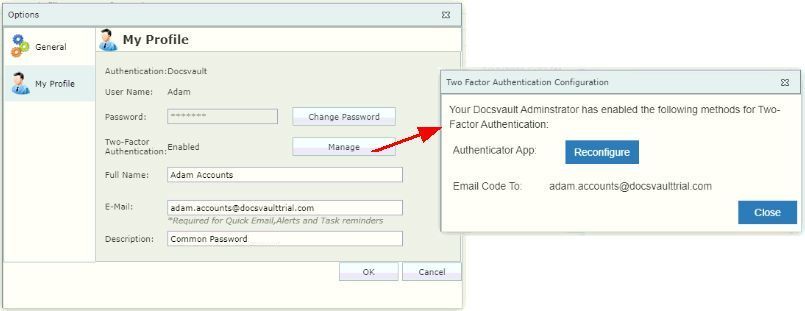
After users have set up their 2FA authentication, they can reconfigure two-factor authentication or update any of the related details from
the ‘My Profile’ screen in their Client applications.