Workflow Steps:
A workflow consists of several Steps that a document will undergo in a business process. Each step can have different participants(users responsible for tasks in the step), due date and time, reference documents, transitions (actions users can perform in this step), notifications, etc. The workflow step wizard is dividing into the following four areas:
General - name and other general information about the step
Adding Dynamic Participants - learn how to create dynamic participants
Transitions - list of choices(actions) a user can perform on this step
Automatic Actions - changes the system can perform automatically when a transition is performed
Notifications - various notifications before and after the task in this step is due
General:
Specify the general information for the Step.
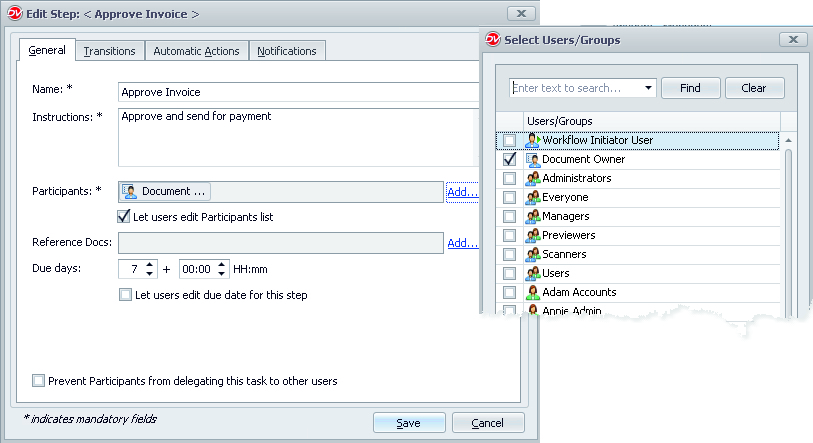
•Name: Short sensible name for the step
•Instructions: Instructions for the task to be performed in this step
•Participants: Users and/or groups that will be participants of this step. A workflow Participant is any user or group that is assigned to perform a task in a step. User can also change the participants for the next step during the actual workflow process instead of this predefined participants list.
You also have an option to add Dynamic Participants to any workflow step through the use of dynamic participants like “Users/Groups” dynamic index field, "Document Owners" or “Workflow Initiator User”. See, Adding Dynamic Participants
 Workflow Step: General Setting |
•Reference Docs: Reference documents that would help step participants in completing their task
•Due days: Numbers of days and time within which the assigned task has to be completed. Note that due days are calculated from the day the workflow enters this step and not from the start of the workflow itself.
•You can prevent participants from assigning this task to other users by checking the option 'Prevent Participants from delegating...'
- A workflow step should have at least one participant to proceed further from this step.
|

Apart from adding individual users or groups to a workflow step, you can dynamically add Participants to any workflow step.
Users/Groups dynamic index field
At times, there is a need to dynamically assign users for any step of a workflow. For example, selecting an approver to approve a document based on the department or document type. In such a scenario, participants can be assigned dynamically based on the dynamic user/group index value associated with the document.
First, create an index field using “Users/Groups” dynamic index field. For instance,"Approver" in the example below:
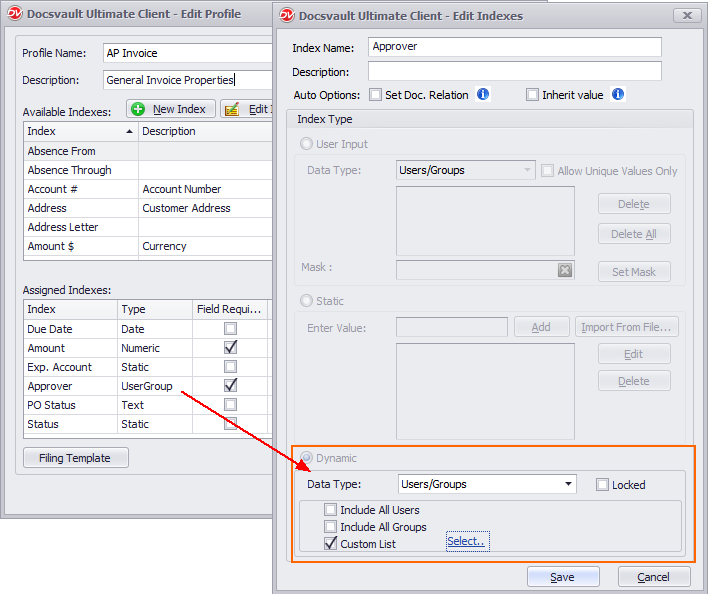 Creating Dynamic Users/Group index in Profile/Index |
This dynamic index field would be available while selecting Participants in a workflow.
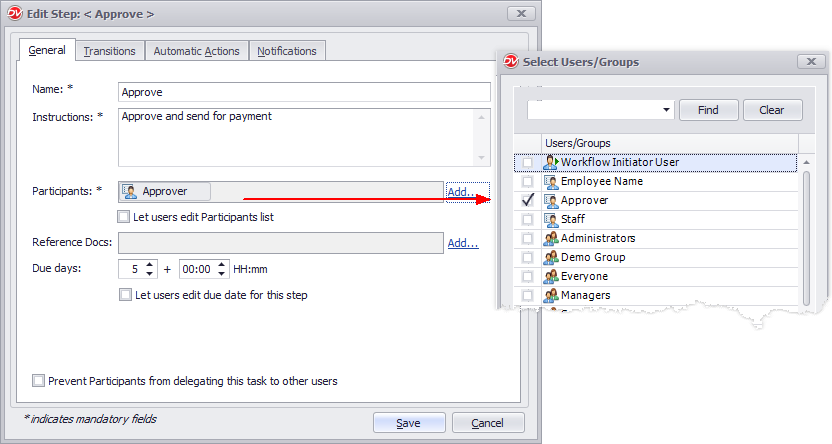 Dynamic Participant - User/Group Index |
Now, whenever a workflow is executed on a document which has this index field associated with it - Docsvault will take the value assigned to this field e.g. 'Approver = Marry Webb' as the participant of a specific workflow step.
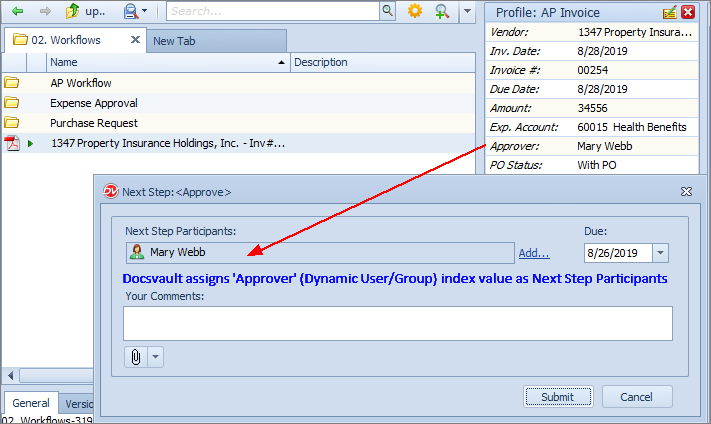 Dynamic user/group index value assigned as next step participants |
Workflow Initiator User
Using this type of dynamic participant, you can assign any workflow step to the person who actually initiated that particular workflow instance. For example in a scenario where you want the document to be send back to initiator for any correction.
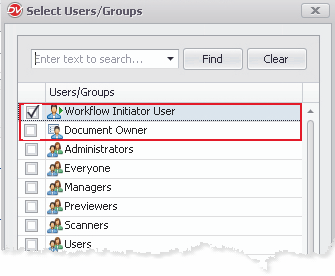
Dynamic Participants: Workflow Initiator
Document Owner
'Document Owner' as a workflow participant: Using this dynamic participant, any workflow step can be assigned automatically to the actual owner of the document. By default, users creating or importing new documents in Docsvault are owners of those documents.
Say for example, you want to assign a particular step of the workflow to the actual owner of a document.
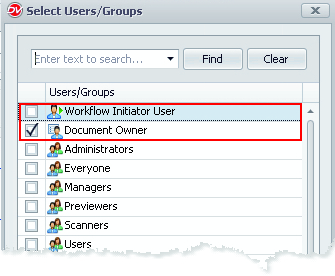
Dynamic Participants: Document Owner