Overview of Electronic Workflow in Docsvault
Docsvault's built-in Workflow module eliminates the hassles of coordinating, managing and tracking activities involved in common business processes like approvals, document reviews, purchase authorizations, etc. Administrators can design workflows that dictate the flow of a document through a series of users or groups in an organization: for example an accounts payable invoice passes through an approval process and then is routed to the accounts department for payment release.
Docsvault's Workflow module automates assigning tasks, sending reminders and tracking participation while creating a record of the entire business process thereby giving you extra time to focus on your core business tasks instead of chasing people and managing the logistics of the document centric processes. Workflow history keeps track of all actions taken on documents and failure points that prevent a workflow task from being completed in time. In this way, Docsvault Workflow helps you keep the approval process transparent and identify costly bottlenecks in your business processes.
Administrators and users with system right 'Create Workflow' can create and edit workflow process in Docsvault Server Manager. This option is also available in desktop and client applications. |

Electronic Document Routing
Manual document routing processes are time consuming, inefficient and error prone. Business processes involve getting many types of information to multiple people according to rules as a document flows from one person to another for approvals and reviews. Docsvault Workflows facilitate this flow of documents in a digital repository that is accurate and timely eliminating the usual hurdles of a manual circulation of documents. It provides each person with timely notifications and information they need to perform their tasks.
Elements of a Workflow
Workflow consist of a series of pre-defined steps, which describe where in a document's life cycle or process the document currently is. Workflow transitions, describes the actions a user can perform and its corresponding effects on the workflow and associated documents.
Steps: A Step may be defined as a stage in a document’s life-cycle or business process. Example: review, approve, pay, etc.
Transitions: Transitions are user actions that move a document to the next step in the workflow. Example: reviewed, approved, rejected, paid, etc.
Workflow Roles
Administrators can specify which users or groups will be a part of the workflow and its various steps. These users can be grouped into the following roles:
•Initiators: A workflow Initiator is any user or group that can start a workflow on a document. All members of the 'administrators' group can also start the workflow process by default.
•Managers: Mangers are users or groups that can supervise the entire workflow and have the privilege to transition or cancel a workflow at any point.
•Watchers: A workflow Watcher is any user or group who can monitor a workflow process. Watchers will be able to view the ongoing progress of a workflow, however, they are not participants and therefore cannot perform any action on the workflow.
•Participants: A workflow Participant is any user or group that is assigned to perform a task in a particular step and not in the workflow as a whole. Different steps can have different participants assigned to it. You also have an option to add dynamic Participants to any workflow step through the use of the “Users/Groups” dynamic index field. To learn more, see Dynamically adding Participants
Administrators can also allow the initiator to customize the list of managers and watchers for workflow instances that they start.
How does it work?
Once documents are captured and stored in Docsvault, predefined Workflows can be assigned to these documents either manually or automatically using other system triggers. Administrators can configure the system to automatically assign Workflows when new documents are created in a particular folder or when a specific profile is assigned to a document. Typically a workflow will follow the steps below:
1.Users or groups listed as 'Initiators' will right click on a document and manually initialize allowed Workflows depending on the document's profile. Workflow can also be assigned automatically by the system based on triggers defined during the workflow creation.
2.Participants (users or groups) of the first step are notified about a new workflow task. All workflow tasks for a user are neatly listed under the "My Workflow Tasks" in the Docsvault Client interface. Users can view or checkout associated documents (or reference documents attached to the step) to perform their task and once their assigned task is completed, they can select an appropriate transition (user action) to move the workflow to the next predefined step. They can also attach supporting documents with their comments for the selected transition. Administrators can define automatic actions to be performed by the system during transitions and various email notifications can be defined for internal or external non Docsvault users.
3.As the workflow moves from one step to another depending on the transition selected, participants of the next step are notified about their new task. Finally, one or more transitions can be defined to complete the workflow and perform any final automatic actions on the workflow documents
(example: moving a document to an approved folder).
At any point in the workflow, participants and workflow managers/watchers can view a comprehensive history of the workflow instance.
|

The flowchart below is an example of how a workflow process can be built to route invoices for approvals and payment.
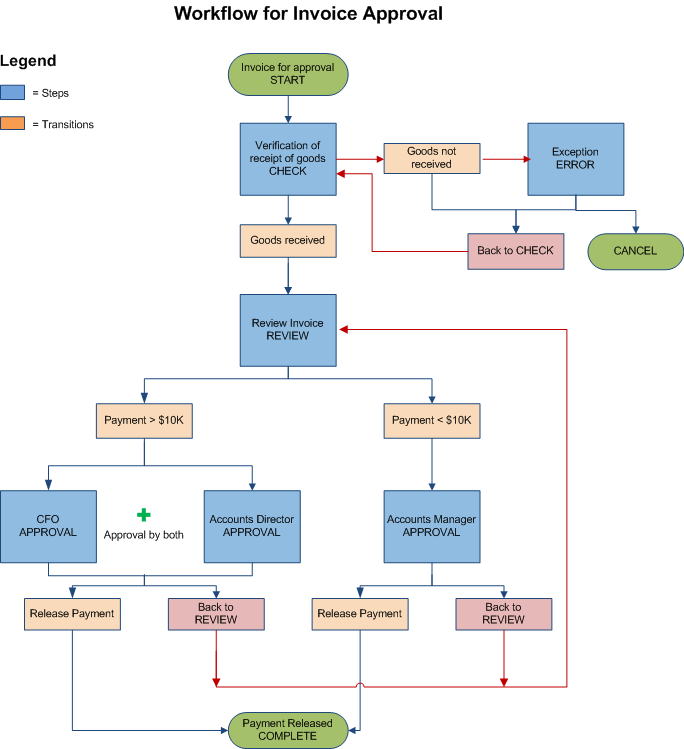 |
In the example above: Electronic approval of purchase invoices An invoice approval workflow is initiated and routed to the department for verification of receipts of goods in the step CHECK, after which it is moved by the transition 'goods received' to the step REVIEW. Here the authorized personnel will review the invoice and depending on the amount, will route the invoice for approval. If the invoice is < $10K, it is routed to Accounts Manager for approval and in-case of the invoice > $10K, it will jointly require an approval by Accounts Director and CFO. The authorized personnel and the selected users will be able to view the tasks in their workflow node and simultaneously receive timely emails and alerts that will prompt them to sign off on document to meet the payment deadlines. On invoice approval, it will be routed to the next step in sequence i.e PAYMENT RELEASE. Once the payment is released, the workflow will be considered as complete. |
The entire time duration from workflow initiation to completion can vary depending on the business process being managed. The entire time the workflow is in progress Managers and Watchers can be designated to watch over the workflow.
Initiating a Workflow:
A Workflow in Docsvault can be initiated in the following manner:
1.Manually Initiating a Workflow: Assigned initiators of the workflow can manually initiate a workflow on a document by right clicking on the document.
2.Automatically Initiating a Workflow by Folder Trigger: A Workflow is automatically initiated when a new document is added to pre-defined folders.
3.Automatically Initiating a Workflow by Profile Trigger: A Workflow is automatically initiated when a new document is assigned a pre-defined document profile. Learn more about initiating a workflow in Initiating a Workflow
Workflow Notifications & Alerts
Workflow participants, managers and watchers are informed about the progress of the workflow via email notifications and various alerts. Participants of any step are promptly notified when a workflow enters a step they are part of to inform them about their new tasks. Workflow notifications can also be extended to other non participant users and external non-Docsvault users using the workflow transition notifications. Various reminders and alerts can be set for users and managers informing them about overdue tasks and exceptions in the workflow.
Viewing and Participating in a Workflow
Managers, watchers and participants can also view a list of pending workflow tasks and take appropriate action under the workflow node in Docsvault Web and Desktop clients. Participants of a workflow can access their pending workflow tasks under the My Workflow Tasks node. They can expand each workflow task to see its full history or open it to see details and act on it. Learn how to view and participate in a workflow in Your Workflow Tasks.
Web Based Workflow
User's workflow notification settings allow for workflow notifications to be delivered directly in their email inbox. Participants with web access rights can participant in a workflow using a direct link provided in the workflow email notification so that they can get to their workflow task with a single click of a mouse.
Workflow Approval using Mobile
Participants can access their Docsvault Workflow tasks while on the move, using their mobile device (iOS and Android). See Mobile Workflow Approvals
Tracking Workflow
Once a participant has completed their workflow task, they can view the further progress of the workflow under the Participated by me node. This window displays a summary of the workflow task, the process and each activity in the process. For more information, see Tracking Workflow Progress .
Monitoring and Administration
Administrators, Workflow Managers and Watchers can view the progress of a task in a workflow process. The Workflow Managing/Watching node displays summary for the workflow task, the process and each activity in the process. For more information, see Monitoring a Workflow.