Docsvault asks the user for creating a new version of a file at following instances:
•While importing, copying and moving of documents.
•While importing scanned documents.
•When a 'Checked out' document is 'Checked in'
•When importing a new version for a specific file
•To overwrite a document, you must have at least 'Overwrite/Delete' rights to the document or be the owner of the document. |

Creating a Version during Import, Copy, or Move
When a file with the same name already exists in the target location, Docsvault displays a Confirm File Replace dialog box with the following options:
Option 1: Overwrite the Existing Version
•Select the Overwrite existing version radio button to replace the current file version.
•The dialog box will display as shown in Confirm File Replacement - Overwrite existing version.
•Click Yes to overwrite a single file, or Yes to All to overwrite all matching files in the batch.
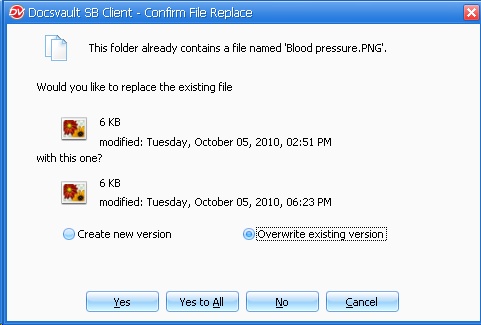 Confirm File Replacement - Overwrite existing version |
•When you choose to overwrite, the current version is replaced by the new file being saved. However, a copy of the overwritten version is moved to the recycle bin as part of the File Overwrite Loss Protection feature. Users or administrators can restore it if needed. The recovered file will be renamed with 'restored' added to its original name.
|

Option 1: Create a New Version
•Select the Create a new version radio button to add the file as a new version without overwriting the existing one.
•The dialog box will display as shown in Confirm File Replacement - Create a new version.
•Optionally, add a Version Note to describe the changes or context for the new version.
•Click Yes to create a new version for the selected file, or Yes to All to apply this option to all matching files, adding the same version note to each.
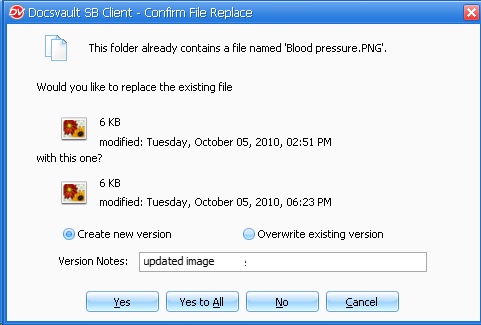 Confirm File Replacement - Create a new version |
Understanding Copying vs. Moving Files with Existing Versions
Consider a scenario where you have a file named "abc.xxx" with multiple versions. You want to copy or move it to a new location in Docsvault. However, a file with the same name already exists at the destination. Here's how copying and moving behave differently:
Copying with Existing Versions:
•A copy of the latest version of "abc.xxx" is created at the destination with a new version number.
•This new version retains the original file's version notes, document notes, profile settings, and current version status.
Moving with Existing Versions:
•All versions of the source file ("abc.xxx") are merged with the versions already present at the destination.
•The latest version of the source file becomes the current version in the destination location.
In simpler terms:
•Copying creates a fresh copy of the latest version from the source, keeping its history intact.
•Moving combines all versions from the source with the existing versions at the destination, effectively merging the file histories.
Creating a Version while Importing Scanned Documents
When saving a scanned file with the same name and extension as an existing file, the Confirm File Replace dialog box will appear. To proceed, follow the instructions detailed in the section Creating a Version during Import, Copy, or Move.
Once you’ve finished editing a checked-out document, check it back in to finalize your updates and make the new version accessible to other users. The check-in process provides options to save changes, create a new version, and organize the document with additional settings.
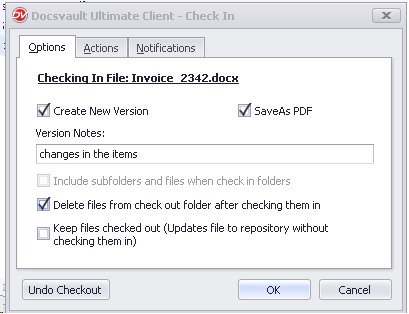 Check In a document |
•Create a New Version: To save the changes as a new version, select the Create New Version checkbox. If left unchecked, the current file will be overwritten.
•Save as PDF: If you want to save the new version as a PDF, select the Save as PDF checkbox.
•Add Version Notes: Enter any relevant details about the changes in the Version Notes field to help track updates.
•Additional Options: While checking in, you can:
oAdd Document Notes for further context
oSet or modify the Folder Section
oInitiate a new Workflow, or
oUpdate the Document Status Flag.
•Notify Users: You can notify the file owner or other Docsvault users of changes made during check-in.
•Click OK to complete the check-in and save the new version.
Use Undo Checkout button to cancel checkout for a file. Any changes you have made in the local copy of the file will be lost.