The Advanced Search screen allows you to specify multiple search criteria to find documents stored in Docsvault.
Searching folders and files in Advance Search
•Click the Advanced Search icon on the main toolbar Or
•Select Search option from the Tools menu.
•Once the Advanced Search window opens, you can refine your search by specifying one or more criteria as below:-
Search text box and keyword options
You need to enter the search text in the text box. Text entered here will be used to search against the options selected by you for folders and files.
 Basic Criteria |
Any word: Displays search result if one or more keywords of the search text are matched.
For example: To find all documents that contain the word "ACME" or the word "Orders" or both search for: ACME Orders
|
All word: Displays search result only when all the submitted keyword are matched.
For example: To find all documents that contain the word "ACME" and the word "Orders".
|
Exact Phrase : Displays search result only when occurrence of exact phrase is found.
For example: To find all documents that contain the exact word "ACME Orders".
|
Docsvault will displays search result only when occurrence of exact phrase is found.
You can search the file with the combination of fields in basic search and advanced search for quick search. If the search keyword matches with the values entered in these fields, the file name will be displayed in search result.
Docsvault allows you to select one or more of the following options in basic search:
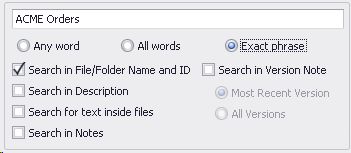
Basic Criteria Options
Search in File/Folder Name and ID
Click 'Search in File/Folder Name and ID' to search text against the names of folders and files. If you know only part of the name, you can use wild card characters like (*, ?) to locate all files that include that part in the name.
Wild Characters |
Uses |
Asterisk (*) |
If you are looking for a file that you know starts with "Doc" but you cannot remember the rest of the filename, type the following: Doc*.* This locates all files of any file type that begin with "Doc" including Document.txt, Document.doc, and Documentation.doc. To narrow the search to a specific type of file, type: Doc*.doc. This locates all files that begin with "Doc" but have the file name extension .doc, such as Document.doc and Documentation.doc. |
Question mark (?) |
Use the question mark as a substitute for a single character in a name. For example, if you type Doc?.doc, you will locate the file Doc1.doc and Docs.doc but not document.doc |
•You cannot search for special characters: + - && || ! ( ) { } [ ] ^ " ~ : \. You can make use of the Wild characters (*,?) to substitute the special characters in Search Text. |

Search in Description
Click 'Search in Description' to search keywords in description. If the search keyword matches with that in description of a file, the file is displayed in search result.
Search for Text inside files
You can search for a file whose text content matches with that of the search text. This is also called as 'Full Text Searching'. Docsvault can also search for partial words at any position in a word. For example, searching for “look” will find both Outlook and Lookout word in a file.
•Search result with this option is possible only for those files whose text has been indexed.
|
To have a full text indexing on a file with specific extension you need to have it's corresponding IFilter component installed on the machine where Docsvault Server is installed. By default Docsvault search uses filters on .a;.ans;.asc;.as;.as;.bat;.bap;.c;.cc;.cls;.cmd;.cpp;.cs;.csa;.cxx;.dbs;.def;.dic;.dos;.dsp;.dsw;.ext;.faq;.fky;.h;.hpp;.hxx;.i;.ibq;.dl;.idq;.inc;.inf;.ini;.inl;.inx;.jav;.java;.js;.kci;.lgn;.log;.lst;.m3u;.mak;.map;.mdb;.mk;.odh;.odl;.pl;.prc;.rc;.rc2;.rct;.reg;.rgs;.rul;.s;.scc;.sol;.sql;.tab;.tdl;.tiff;.tlh;.tli;.trg;.txt;.udf;udt;.usr;.vbs;.viw;.vspscc;.vsscc;.vssscc;.wri;.wtx
You can also install third party filters to parse other file types.
•Docsvault search result will depend on the setting for 'Indexing' in 'Docsvault Server Manager'.
|
Search in Notes
Click 'Search in Notes' to search the files based on document notes.
•Search result with this option is possible only with 'Any word' and 'All word' type of search.
|
Search in Version Note
Click 'Search in Version Note' to search files based on version notes.
By default search is performed on the most recent version of files. But you can opt for search on all versions by selecting the 'All Versions'.
•Docsvault will use OR operator to search for files that matches with any one of the above criteria.
|
If you do not know any of the above information or want to narrow your search further, select one or more of the remaining options:
Look in
By selecting a specific folder, you may restrict the search for documents to only those documents contained in the selected folder and its sub folders(s), if any.
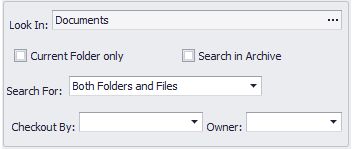 Setting Criteria |
Search for
Select from the list box whether you are looking out for only files or folders or both for quick result.
Current Folder only
Enable this option to search in the current folder only
Search in Archive:
Enable this option to search within archived documents.
Checkout By
If you know the name of the user who has checked out the document, you can run a search based on checkout by selecting a user from the list
Owner
If you know the name of the user who created the document, you can run a search based on owner by selecting a user from the list.
Search By Date
If you would like to search for a document based on date criteria, you must select one of the two options in the Date Criteria drop down box:
•Created Date
•Modified Date
If you would like to specify a date range:
•Click on the From radio button
•Specify a date range
OR
If you would like to specify a range for In the last... Days :
•Click on the In the last... radio button
•Specify a number.
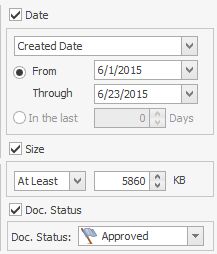 Setting Date, Size & Doc Status Criteria |
Search by Size
Use this field to limit your search to documents that are at least, or at most, a set size as measured in Kilobytes.
Search by Document Status:
Use this field to limit your search to documents that are flagged with the specific document status (review, draft, approved, etc...).
Try using Profile Search criteria to make your search more specific.
Profile Search
Using this option allows you to generate more detailed search queries thus enabling you to further narrow your search results and speed up finding documents according to the assigned custom profiles and index values.
More than one search criteria can be added to the Profile search, as shown below.
Use above AND below conditions- by selecting this option you indicate that all the criteria of Profile search 'and' other criteria mentioned above should be satisfied and be listed in the search results. Using AND option you narrow the query.
Use above OR below conditions - If you want to expand/widen the query, you can use this option. By selecting this option you indicate that at least one of the criteria i.e Profile search criteria or Basic search criteria must be satisfied and be listed in the search results.
To search by custom indexes, do the following:
•Click on 'Any' under the Profile Name column and select the Profile from the drop down list
•Similarly select the Index
•Set the Criteria condition and
•Specify the Index Value for a specific condition.
•For Text type of value the 'Criteria' can be to set to compare the exact phrase/numbers by using "Is" or partially by selecting "Contains" •For Number type of value, condition can be any of the following type:
•For Date type of value, condition can be any of the following type:
You can even search for empty index values. For example Amount =is Empty".
|
•Click on the Search button to complete the search.
If you want to use more than one property condition while searching, click on the 'Add Condition' button. You can specify the type of relationship between the two conditions by select the 'And' or 'Or' under Condition column.
For Instance:
|
Index |
Criteria |
Index Value |
Use this to |
Text |
Client |
Is |
ACME |
Find only files that have index value ACME for Client |
Numeric |
Amount |
Is |
1250 |
Find only files that have Amount index values less than Twelve thousand four hundred and fifty. (use comma ',' as number separator) |
Date |
Due Date |
> |
10/25/2018 |
Find only files that have Due Date falls later than 25th Dec 2018 (use the date format as 'mm/dd/yyyy' ) |
The search would only return those documents that fit the custom property criteria, giving you a much shorter list of documents to go through.
If you have selected AND operator to search then all the documents matching both the search criteria will be listed in the search results i.e the bills of <ACME> client amounting <1250> and due date falling after <25th October 2018> will be displayed.
If you have selected OR operator to search then any document that contains at least one of the search criteria will be listed in the search results. i.e it will display all the bills amounting to <1250> or whose due date is greater than <25th October 2018>
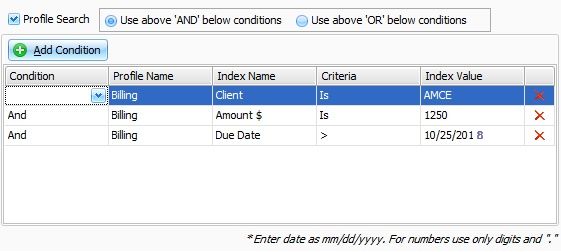 Setting Profile criteria |
Let's summarize the search criteria.
For example: Using the 'Profile' in search screen, you could specify that you are looking for all approved Invoices that have a 'Billing' profile set attached, and you are looking for all bills of the client 'ACME' amounting to 1250 and whose due date is greater than 25th Oct 2018 created by Jennifer is last 15 days.
|
To search by the above criteria.
•In 'Search Text box', enter ' Invoice* '
•Select 'Search in File/Folder Name and ID'
•In 'Owner', enter ' Jennifer '
•Set 'Date', 'In the last 15 days'
•In 'Profile Search', Set 'Profile Search Parameter' as
Profile Is 'Billing'
Client Is 'ACME'
Amount Is '1250'
Due Date > '10/25/2018'
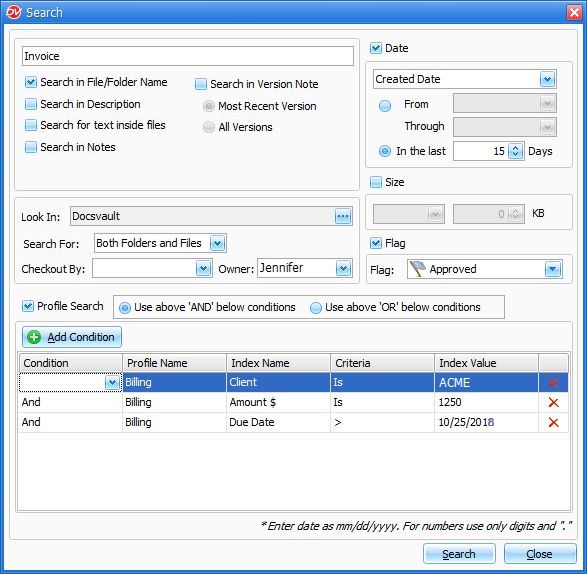 Setting the query |
•If you want to view any of the search results, double-click the file and it will open in the relevant application.
|