Quick Search
Quick search allows you to type in a simple search terms directly in the main Docsvault window. Docsvault will search for the specified word in the name, description, version notes, document notes, profile/index, and even in the actual content of every document in Docsvault.
To perform a Quick Search:
•Type in a word in the Quick Search text box.
•Click on the  Search icon on the toolbar.
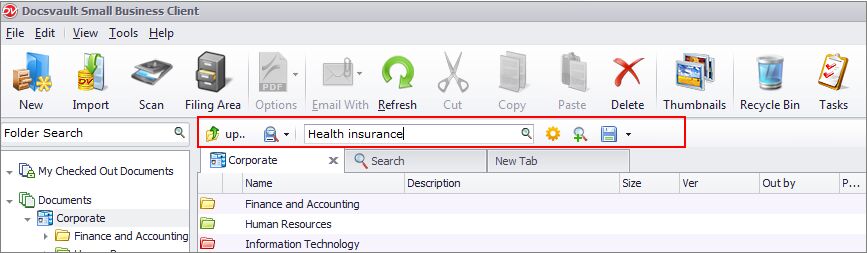 Quick Search option |
After you execute a search, the list of matching documents appears in the results window. You can further sort and filter the search results by hovering your mouse over any column header and choosing the sort or filter icon.
•By default, the keyword entered in the text box is searched in the name, description and document notes of files and folders under the selected cabinet or folder. You can change the setting by clicking  Search Options.
•Search keywords are highlighted for PDFs opened from search results when searching for document contents
•You can save the search criteria for future use by clicking on the Save Search button.
•You can further narrow down your result by clicking on the Refine Search. The result is dynamically generated based on you current search results.