To find your documents effectively and handle various document life cycle events in a document management system, you often need to index/profile them. The Docsvault Advanced Profiles add-on allows you to fetch value lists for filling up profiles from external databases like your CRM, ERP, Accounting and other LOB applications. The Advanced Profiles Add-on allows two types of index fetching methods:
Primary/External Index: For Indexes defined as Primary/External Indexes their list of values is fetched from external SQL based databases. Example: list of customers, vendors, etc.
Secondary/Dependent Index: For Indexes defined as Secondary/Dependent Indexes their index values are filled/filtered up automatically as per rules based on a value selected in a previous index field. Example filling up of customer information automatically based on the customer name or ID selected in previous index field or filter out the list of vendors by region or type of products selected in a previous index field.
You define the auto filling rules for primary and secondary indexes when creating profiles in the Docsvault Server Manager dialog. Once set properly, when profiling a document in Docsvault a user can select a value from the list that displays values dynamically retrieved from an external database and can also auto populate specified secondary/dependent index fields.
This feature is only available as an add-on module and requires separate purchase and activation.
|

Defining Auto Fill Rules
Connecting External Database involves following 3 steps:
1.Installing ODBC drivers
You will first need to install proper ODBC drivers for the database that you are trying to link with. Almost all SQL based databases offer ODBC drivers to interact with them.
2.Creating a System DSN for the external ODBC data source
A DSN (Data Source Name) contains all information that is needed for opening a data source like Server name or IP address, user name, password and special data source parameters, etc. You can create System DSN via ODBC Data Source Administrator (Data Sources (ODBC)) dialog found under Start > Control Panel > Administrative Tools in your OS. Since the setting of DSN are specific to your SQL data source, you should refer to your SQL data source documentation for further information on this.
3.Connecting with external data and setting Auto Filing Rules
Follow the steps below to create a relation with the external data source in Docsvault
oGo to Docsvault Server Manager > Profiles/Indexes node
oFrom the Profile tab, create a new 'Profile' or open an existing 'Profile'
oAssign a new 'Profile Name' and a short 'Description' about it
oSelect each index from 'Available Indexes' list and click on Add button. The selected index will get added to the 'Assigned Indexes' section.
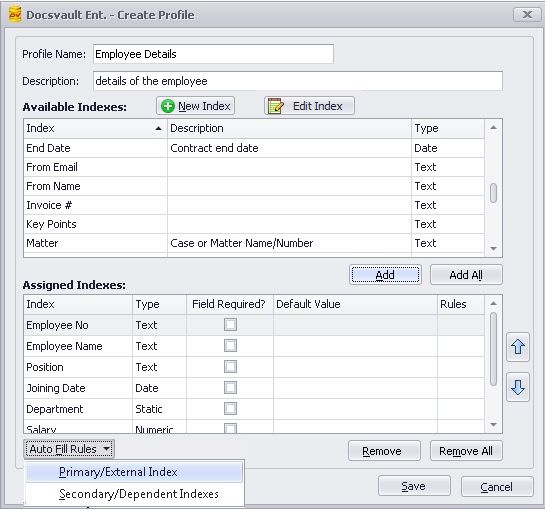 |
oFrom 'Assigned Indexes' section, select the index and click on 'Auto Fill Rules' list box
•Primary/External Index: Select this option to set the index field as external primary index field
•Secondary/Dependent Index: Select this option to set the index field as dependent secondary index field
oSelect the index field and click Primary/External Index from 'Auto Fill Rules list box.
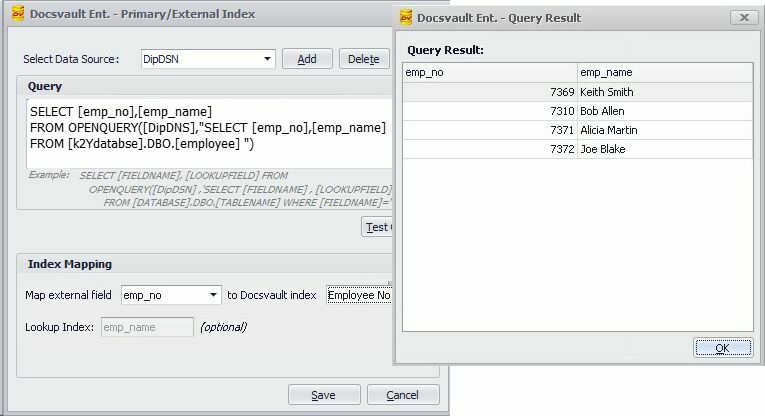 Setting up Primary Index Query |
Connecting with external data
oSelect Data Source: Click on Add button to create a new DNS connection if necessary
 |
oSelect System DSN created in ODBC Data Source Administrator (Data Sources (ODBC)) from the dropdown list
Server Name: Enter the name SQL server name to connect
User Name & Password: Enter user name and password to connect to sql server
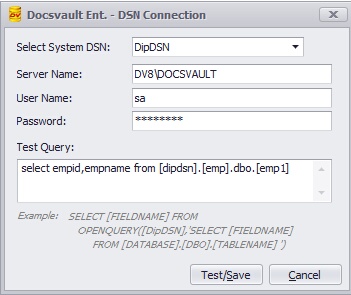 |
oTest Query: Enter a query in the format shown in the example below.
Examples:
The following example displays data structure of table Employee
Table Employee
EMP_No |
Emp_Name |
Position |
Join_Date |
Dept |
Salary |
7369 |
Keith Smith |
Sales Executive |
12/17/2011 |
Marketing |
$75296 |
7370 |
Bob Allen |
Clerk |
02/01/2011 |
Admin |
$41473 |
7371 |
Alicia Martin |
Manager |
03/02/2010 |
Marketing |
$108132 |
7372 |
Joe Blake |
Sales Executive |
04/04/2011 |
Marketing |
$70482 |
SQL Query Syntax:
This is syntax for MS SQL database to select primary index field.
SELECT [FIELDNAME], [LOOKUPFIELD] FROM OPENQUERY ([DNS], 'SELECT [FIELDNAME], [LOOKUPFIELD] FROM [DATABASENAME].DBO.[TABLENAME] WHERE [FIELDNAME]="VALUE"') |
FIELDNAME: Specify the column to retrieve by the SELECT statement
LOOKUPFIELD: Specify the lookup column name for easy identification. This is optional.
DNS: Specify DNS connection. e.g DIPDNS
DATABASENAME: Specify the database name e.g k2Ydatabse
TABLENAME: Specify the table name from where to retrieve the data e.g employee
FIELDNAME="VALUE": Specify a filter condition to return only the desired rows. The WHERE clause is optional.
• Data Types: When you load data from the external table, the data types of the external table may not match the index's data type in Docsvault. In such cases you must perform conversions by using SQL operators in the SQL statement that is selecting from the external table. •Date Format: Following syntax should to used to convert date time data type field to ISO8601: |
To query the k2Ydatabse database for the list of employees from the employee table enter this statement in the Query text box and then press Test Query button. Results will be displayed in the pop up window along with the look up column.
SELECT [emp_no],[emp_name] FROM OPENQUERY([DipDNS],'SELECT [emp_no],[emp_name] FROM [k2Ydatabse].DBO.[employee]') |
oClick on Test Connection. On successful connection, query will be executed and a pop up window will display the results of the query for preview.
This indicates that the relation has been successfully established between Docsvault and the external database. Click on OK to verify the query syntax.
oIndex Mapping: This section allows you to map external database field with Docsvault index field. For e.g In the above example, external [emp_no] filed is mapped with Docsvault index field "Employee No". The external field [emp_name] will act as a lookup field.
oClick Save to save the configuration.
•A profile can have multiple primary external indexes. •Please follow the proper SQL query syntax as shown in examples above. oOnly "Select" type queries can be used oQueries return results along with lookup column oQueries are executed in real time from the Docsvault Server side and bring up most current values even when index values are |
Specifying Primary/External Indexes at the Index level instead of the Profile level
If you wish to use the same index as a primary field in multiple profiles you can setup its external link in the 'Edit Index' dialog instead of this Profile dialog.
oGo to Docsvault Server Manager > Profiles/Indexes node
oFrom the Indexes tab click on New to bring up Create Indexes dialog box as shown below
oEnter a Index Name and a short Description for it
oUnder Index Type, select From External Source radio button
oSelect Data Source: All System DSNs created on your machine are listed in this drop down menu. You can now choose the DSN to use for this connection.
▪Query: Enter a query to select the index column as in the example below:
Examples:
The following example displays list of employee name in the Employee Name index
SELECT[emp_name] FROM OPENQUERY ([DipDNS],'SELECT[emp_name] FROM [k2Ydatabse].DBO.[employee]') |
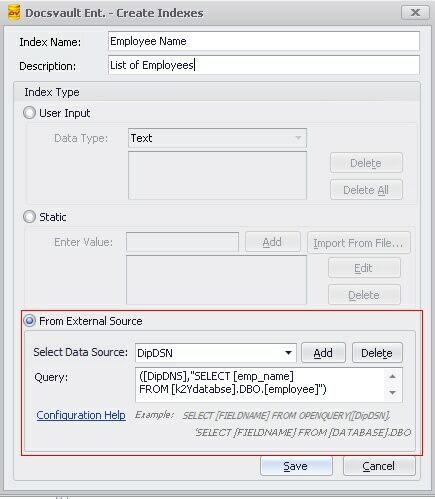 Index values from External Database |
oSelect the index field and click Secondary/Dependent Index from 'Auto Fill Rules list box.
oSelect Data Source: All System DSNs created on your machine are listed in this drop down menu. You can now choose the DSN to use for this connection.
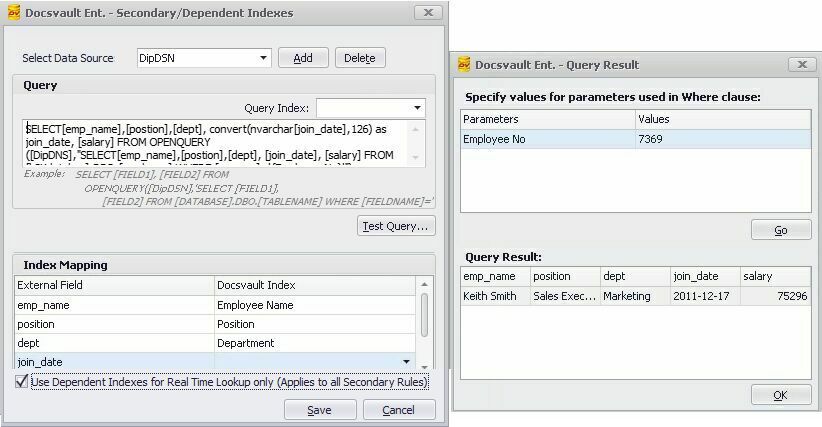 Setting up Secondary Index Query |
▪Query: Enter a query to select the secondary columns as in the example below:
SQL Query Syntax Example:
To query the k2Ydatabse database for the list of dependent fields of employees from the employee table, enter this statement in the Query text box and then press Test Query button.
SELECT[emp_name],[position],[dept], convert(nvarchar[join_date],126) as join_date, [salary] FROM OPENQUERY ([DipDNS],'SELECT[emp_name],[position],[dept], [join_date], [salary] FROM [k2Ydatabse].DBO.[employee] WHERE [emp_no]="{Employee No}"') |
In the pop up window, you can test the result by entering the value for the primary field. On successful connection, query will be executed and result will be displayed in the Query Result section.
oIndex Mapping: This section allows you to map external database field with Docsvault index field as shown in the above screen shot.
oReal Time Lookup: Enable 'Use Dependent Indexes for Real Time Lookup...' option to fetch index values for secondary or dependent indexes in real time when a document's profile is displayed.
oClick Save to save the configuration.