Automatic Backups
You can also schedule your backup under the Schedule Backup section. You can schedule your backup to run periodically or at a specific time. Scheduling a backup in Docsvault is quite similar to 'Task Scheduler' in Windows.
Set Schedule for Automatic Backups
•Select the Repository > Backup in Docsvault Server Manager dialog box.
•Under the Schedule Backup section, select the backup location on the local or network drive.
•You have the option to schedule your Full and Increment backups on local or network drive. For more information, see set schedule for backup.
Full backup: Will take backup of all files and meta data in the repository till date. You normally perform 'Full backup' the first time you create a backup set and then once a week or month.
Incremental Backup: Backs up only those files created or changed from the last 'Full or Incremental backup'. Incremental backups can be performed daily or every few days between the full backups.
It is a good idea to maintain a consistent location for the backups to ensure correct backup set creation.
•To schedule Full backup job for the first time, click Set Schedule.. button.
•When you set the schedule for the first time, Docsvault will ask for your Windows' user name and password in Windows Login Information dialog box.
•In the Scheduled dialog box, set the date, time, and frequency parameters for the backup.
•When you are finished, click the OK button.
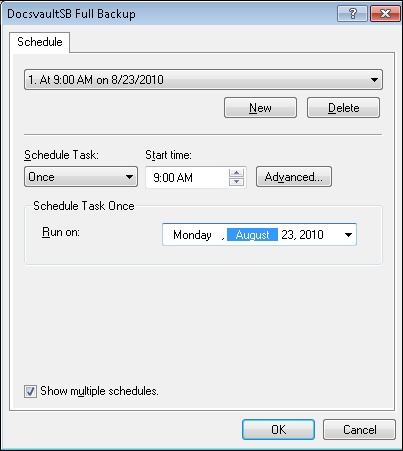 Automatic Backup Schedule |
|
Similarly, you can create schedule for Incremental Backup.
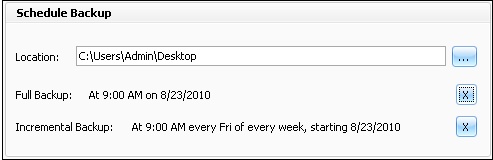 Automatic Backup Schedule |
Docsvault will automatically take your next backup during the time frame you have specified.
To delete the backup job, simple click on the delete ( X ) button.
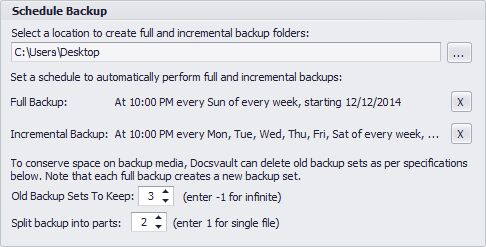 Automatic Backup |
Purging Old Backup Sets:
You can set to delete old backup files created by the Docsvault backup scheduled job to save space. Each time a full backup is performed, a new backup set folder is created and labeled with the date & time of backup, and any incremental backups are then added to that new folder.
Enter '-1 ' to disable automatic deletion of backup sets.
Split Backup
You have an option to Split the backup into multiple files. Splitting database backups helps save space and run your backup more efficiently. For example: Entering '2' will
split the backup file into 2 parts. Enter '1' to create single backup file.