This section covers:-
Manually backing up on Local / Network location
Manual backup will allow you to take 'Full backup' of all files in the repository along with its meta data.
•Select the Repository > Backup node in Docsvault Server Manager
•Under the Manual Backup section, browse to the location on the Local or Network drive to store backup folder
•You have an option to Split the backup into multiple files. Splitting database backups leads to faster backups using multiple threads as well as producing smaller manageable files that can be moved across the network or uploaded to the cloud easily.
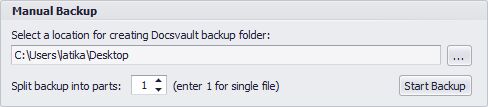 Manual Backup |
•Now click on Start Backup button to start the backup process.
•Once the backup is completed, a dialog box will appear confirming the completion of a successful backup.
•The name of the backup folder is a combination of the term "Docsvault Backup" and current date and time.
Ex. Docsvault Backup 04-Jan-2010 17.49.
•Click on Close button to close the backup wizard.