Docsvault Web Explorer
After you log in to Docsvault web client interface, Docsvault Web Explorer page is loaded. This is the home page of your web document management system.
This page provides access to your Docsvault repository, where you can work with documents and folders in the web client interface.
oLeft Panel: Allows you to easily navigate various locations through familiar tree and folder structure
oCenter Panel: Allows you to see a list of all files and folders within a particular cabinet or folder. You can even right click on any item in this panel to display a list of possible actions just like a desktop client. You can even double click on files or folders to open them in new tab, download them or navigate inside a folder.
oRight Panel: The right most icon strip allows users to open up panels on the right of the Center Panel to display associated information for the selected items.
Document Properties: This section displays all the general information of the selected item such as filename, system ID, version,
workflow status, digital signature status, disposition date if retention is applied and the document’s profile.
You can preview files in a new tab for supported types (PDF, doc, docx, xls, xlsx, txt, csv, etc.) by simply clicking the file name displayed at the top in the Document information panel. To mark the item as favorite, simply click on the favorite star icon next to its name.
Document Notes: This button displays all the notes for the selected item in a popup dialog
Document Task: Displays a list of tasks associated with the selected item in a popup dialog
Document Preview:Allows you to enable a preview panel that displays contents of supported file types
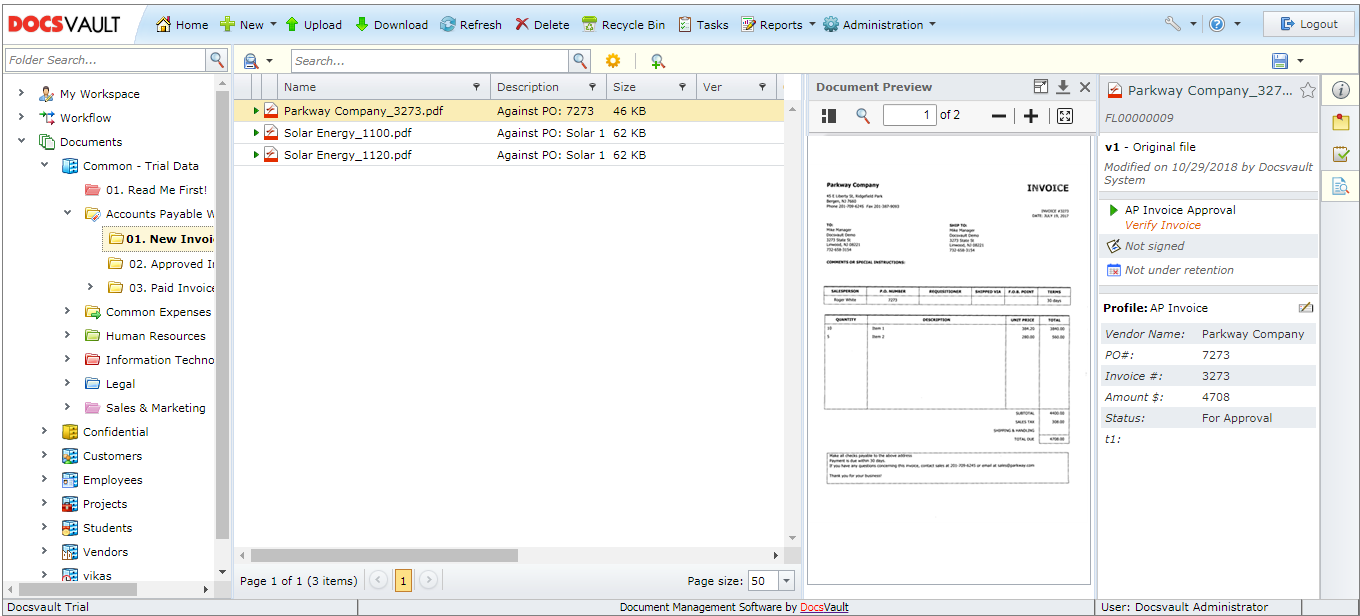 Docsvault Web Client Interface |
You can add, retrieve, and work with documents from anywhere you have internet access, see Working with Documents
You can view documents without the need to download a file in Document Previews
You can share documents with others. See Sharing Documents
You can see and manage all in bound, outbound and your personal tasks, See Task Management
You can easily access your tasks calendar, favorites files and folders, public links and recent documents shared in My Workspace
You can create and participate in workflow, See Workflow
You can set your configure and set your preferences in Options