|
Viewing Document Thumbnails |

  
|
|
Viewing Document Thumbnails |
|
|
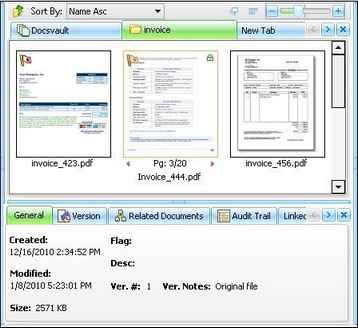
Viewing Document Thumbnails Thumbnails view displays the thumbnail images of files so you can quickly identify the contents of the files. It supports all image files and PDF files while other type of files are displayed in their normal file icons. This view style is especially useful in helping the user to find a scanned document. The User can visually spot the image document rather than having to remember the name of the file. A Thumbnails view list generator displays file details such as filename, page#, controls to move between the pages and the flag status. You can also sorting files in thumbnail view such as sort by name, date, size in ascending and descending manner. If the file has been flagged, a flag will be displayed in the top left hand corner. In the screenshot below file Invoice_423.pdf and Invoice_444 are flagged. The checkout file is indicated by the checkout lock on the top right hand corner. The file Invoice _444.pdf below is checkout for editing by the user.
You can move the slider to change the size of the thumbnails. The thumbnails settings is automatically preserved till you change it next time. Double-clicking on the document will open the document in its associated program.
You can sort thumbnails view in a variety of different orders. To change the order in which thumbnails are to be displayed select 'Arrange Icon' from the 'View' menu. For more information, see Sorting files and folders.
Page url: http://www.docsvault.com/online-help/professional/index.html?thumbnails_view.html |