|
View files and folders |

  
|
|
View files and folders |
|
|
Document Preview Window You can view the documents stored in Docsvault in the following ways:
A safe way to view a document is by opening it in read-only mode. This prevents unintentional modification of data. You can use this option to view and print PDF documents and image files imported into Docsvault.
To view the file
Double click the file and select open the file for view only. It will prompt you to open it for view only or checkout the file for editing. Select the appropriate option.
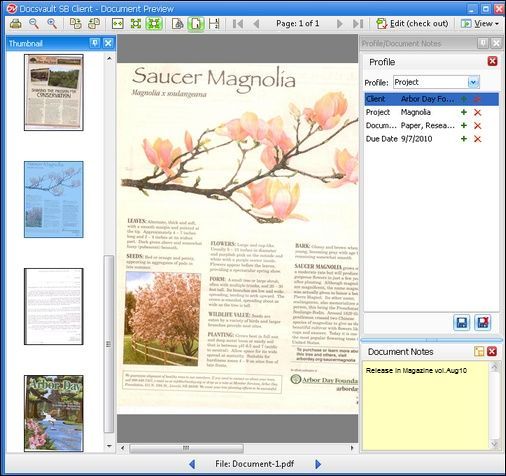
Docsvault Preview Window
Document Preview lets you open and view Images and PDF files. You can edit the Profile, view the annotations such as highlights, stamps and easily search the text using the Find option in an open PDF. However, to add or view comments of any annotation you need to open the document in PDF Editor.
When you try to open a restricted PDF document, you may need to enter a password to open it. In addition, restricted or certified documents may prevent you from viewing or printing your files.
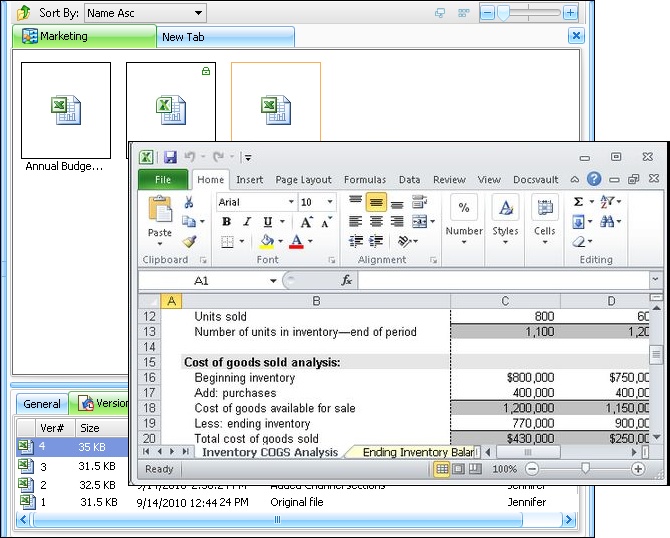
Associated Application Window You can use this option to open and edit documents imported in Docsvault in their native application.
For example: A file with .xls extension will open in Microsoft Excel application.
To view the file other then in its native program, just right-click the file that you want to open and choose the appropriate program from the Open With choices
Page url: http://www.docsvault.com/online-help/professional/index.html?view_files_and_folders.html |