|
Adding a Personal task
| • | From 'Task Navigation Panel', select Personal. This will allow you to set personal task. |
| • | Bring up the New Task dialog box by one of the following ways: |
Click on the New Task icon Or
Right click on task list panel to display the pop up menu. Click on
|
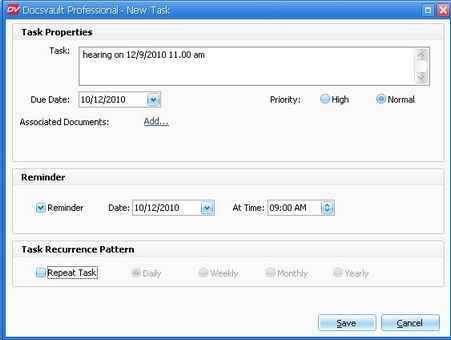
Assigning a personal task
|
| • | Enter task details in 'Task Properties'.
|
Task: Add a short description about the task to be performed in the 'Task' text box.
Due Date: From the drop-down calendar select due date of the task.
Priority: To set a high priority to a task, select 'High' radio button.
| • | Select the 'Associated Documents' check box to expand the New Task dialog box |
| • | Click on Add button to attach any documents along with the task.
|
| • | Set task 'Reminder'
If this option is checked a task reminder message box pops up on specified date and time. |
| • | Set 'Task Recurrence Pattern' |
For example:
An appointment or task that occurs on a regular basis, such as a monthly meeting or expense report to be submitted. The reminders are specially helpful for performing necessary actions on any document in the repository - just add a task related to any document with appropriate reminder.
|
 Note: Note:
| • | Recurring tasks appear one at a time in the task list. When you mark one occurrence of the task as complete, the next occurrence is automatically generated in the list.
|
|
| • | Click on Save button to save the task. |
Page url:
http://www.docsvault.com/online-help/professional/index.html?task_add.html
| 


