|
 Choosing the Computer Choosing the Computer
Docsvault does not need any special grade computer. You can designate any dedicated PC with a good processor, ample Memory (1 GB+) and enough available hard drive space for storing files imported in Docsvault.
|
 Security: Security:
| • | Docsvault installation requires that the installer have administrator permission to create folders and files and make necessary registry entries. |
|
 Components Installed Automatically By Docsvault Components Installed Automatically By Docsvault
| • | MS SQL Server Express 2005: 'Docsvault Configuration Wizard' automatically installs a free MS SQL Server Express 2005. |
| • | Windows Search: If Windows search service is not installed, Docsvault Configuration Wizard can download and install it automatically during the initial configuration. Windows Vista and 7 already have this service installed by default. This service is only required if you wish to use the full text search feature within Docsvault. |
|
Installing Docsvault Professional
This procedure outlines all of the steps necessary for you to perform a brand new installation of Docsvault.
Part I - Installation of Program Files
| • | Log in the computer using an account with administrative rights |
| • | Run the installation file Docsvault_Pro_v4.x.msi and follow the on screen instructions |
| • | On the License Agreement page, read the license agreement and if you accept the license terms click on I Accept, and then click the Next button. |
Select Installation Folder
| • | Installation folder contains the program files for Docsvault Professional. By default the installer will choose 'C:\Program files\Docsvault Professional\'. You can change the location of program folder by clicking on the Browse button. It is recommended that you keep the default path as this folder will contain only the program files, NOT the actual data imported into Docsvault. |
| • | Click on Next button to go to the 'Confirm Installation' window. |
| • | On completion click the Close button. You can now launch the Docsvault Professional Manager from the desktop icon to start the server configuration wizard.
|
Part II - Configuration of Docsvault Professional
When you start the 'Docsvault Professional' for the first time after installation, the 'Docsvault Configuration Wizard' will start automatically. This wizard includes the following steps:
Step 1: Selecting location to store Database and Full text search option
| • | You will be asked to select a path for documents storage. The installer will create a 'DVPro Data' folder at the selected location. Select a drive that has plenty of free space available as this folder will grow in size as more and more documents are imported in the future. |
| • | The Data Folder can also reside on an external hard drive that is physically connected to your computer provided that the driver letter remains constant. |

|
Location to store Docsvault Database
|
| • | If you have a domain based network, you can even put the data folder 'DVPro Data' on a network share or a NAS device. If you choose to put the data folder on network, please make sure to specify a domain user credentials that has write access to the specified shared folder. |
Full Text Search Engine
| • | Your Operating System's indexing engine service can be used for full text search within Docsvault. In case this service is not installed on your machine, Docsvault will offer you a choice to download and install this OS search component automatically. This feature in not essential for Docsvault's operation but is recommended as it will enable you to search for text even within files. |
Full text search for standard PDF and OCRed PDF files
You need PDF iFilters for the indexing service to index PDF files. On any 32 bits OS, installing the free Adobe Reader 9.0 + on the machine will install the proper iFilters necessary. For 64 bits OS, please install the 'Adobe PDF iFilter 9 for 64-bit platforms' available freely from Adobe's website. At the time of this writing the 64 bits iFilter is available here.
|
Full text search for document location on network/NAS
Note that full text indexing is not supported on network repositories on following operating system: Window 7 (32 & 64 bit), Vista 64 bit, Server 2008 (32 and 64 bit). This feature is supported for XP and Vista 32 bits with the a network patch found here.
|
Step 2: Letting Docsvault install a New MSSQL Server Express Instance and Services
| • | Click on Proceed to let Docsvault configure and install a new MS SQL Server Express instance on your machine. Docsvault uses Windows Authentication to allows the user to connect to SQL Server. |
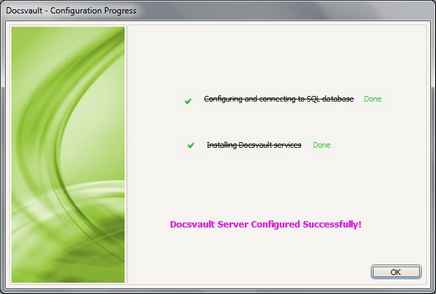
| • | The configuration and necessary installation will now start and you will see the following progress window. |
Installation Time
If you let Docsvault installer install the SQL Server express on this machine, it may take up to 15 minutes to complete the installation and configuration process. Please be patient during this process and refrain from using other programs on this computer during this period.
|
|
Docsvault Professional Configured successfully
|
Once the Docsvault Professional is installed and configured, it is now time to start the application.
Page url:
http://www.docsvault.com/online-help/professional/index.html?sv_install_dvpro.html
|


