Navigation:  Docsvault Features > Templates >

Folder Template

Print this Topic Previous pageReturn to topNext page

Folder Template

Folder Template is a collections of folders and commonly used files which can be saved and reused while creating a new folder. The Folder Template feature provides an easy way to automatically place a pre-defined set of folders in a cabinet or folder.


You can also associate profile, columns to display, and audit log events to a folder template. Instead of specifying these settings every time you can create a new folder, you can specify these settings once and save them as Folder Templates.  By creating folder templates all of your files are organized in the uniform manner which makes retrieval and use quick and easy.


For example:

Say, if you use a particular Project template, you can create: folder structure to use to store the documents for that project, a profile that defines the meta data for that project, set the columns to display for that project folder and auditing of actions related to the project. Then, any folder to which you associate the Project Template will include all of these features and will enable the user to create new project folder based on the template.


You can create as many Folder Template as you want.


To create a Folder Template

Once you create this template and apply it, the vast majority of the folders in your file system will change to match it, so it’s important that we set it up very carefully. The first step in creating and applying the template is to customize one folder with the settings that all the rest will have.


Select the Tools tab and click the Template option. This will bring up the Template Window.
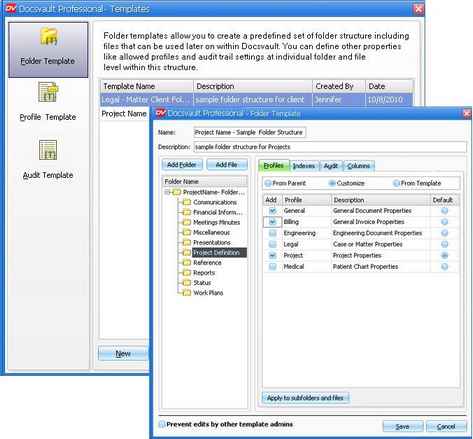
From the left panel, select Folder Template. Click New button to add a Folder layout.
In the Folder Template, enter a name and description for the new folder template.
Add Folder, click on Add Folder to build a folder structure. The Add button will add a folder at the current level.  You can remove folder from the layout by right clicking on the folder and selecting Delete, and rename it by selecting Rename option.
Add Files, you can insert commonly used files in a folder structure by clicking on Add Files.
You can add Folder Properties such as Profile/Indexes, Audit Trial and Columns to display for individual folders and files.
Once you have specified the folder properties then click the Save button to save the information as a Folder Template. The Folder Template will now be listed in the Folder Template drop-down.
 

Folder Template


To edit a Folder Template, click the Edit button in the Folder Template list.
To delete a Folder Template, click the Delete button in the Folder Template list.


Note:

Deleting a Folder Template will not affect locations where you previously used the folder template. For example, if you delete a Folder Template this will not delete folders in your cabinet that were created from the template. Also, if you rename or change the folders in a Folder Template, you will have the option to apply the changes to the folders that were created from the template or lets it remain as it created.


To set Folder Properties: Profile


Use the Profile tab to assign the Profile available to the selected folders and files.
You can set the profile in one of the following way:

  Inherit from the parent folder

Selecting this option will the documents inherit the profiles of their parent folder where this folder template is applied.


Customize the Profile

Selecting this option will allow you to customize the profile to be available for the selected folder. You can also set the default profile for individual files and folder.


Select it from predefined Profile Template

You can reuse the predefine profile template by selecting this option.


Apply to subfolders and files: Once you have the folder properties exactly the way you want it, we now use these settings as our default for subfolders and files.  To do this, click on 'Apply to subfolders and files' in the Profile tab of the  folder you just customized, and then, click on the Save button to save the settings.


Similarly, you can set the other properties such as:


Indexes: This allows you to set the default Index values for the Profiles selected.


Audit Trial: You can select the events that you want to monitor on this folder structure by using the Audit tab.


Columns: The final thing you may wish to change is which columns are displayed, and the order of these. You can predefine the way the folder  should appear in the Detailed list view. For instance, along with the general information of file details such as descriptions, size, dates etc. you can now also display your file profile property such as client, department, contract etc.


Apply a Folder Template


To learn how to use Folder Templates with your folders, see Create a group of folders using Template.


Page url: http://www.docsvault.com/online-help/professional/index.html?folder_template.html