|
Edit text attributes
In Docsvault PDF editor, you can change the attributes of text such as Font, Font size, Character spacing etc.
To modify the properties of the text
| • | Select the Insert or Edit text tool by either selecting the Insert or Edit text toolbar button  or choose Tools > Insert or Edit text or press Ctrl + T. or choose Tools > Insert or Edit text or press Ctrl + T. |
| • | In the Edit Text mode, drag the I-beam pointer to select the text whose attributes you want to change or |
To edit the whole block of text, select the text block using Edit Object tool  . .
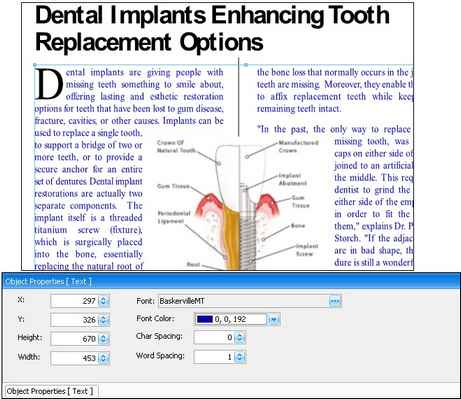
| • | Click on the Object Properties panel on the bottom panel. The Object Properties window will appear where you can change the text attributes such as : |
| ▪ | Height - Change the height of the text |
| ▪ | Width - Change the width of the text |
| ▪ | Font - You can select any font installed on your system. Change Font size, Font Style and Effects |
| ▪ | Font color - Change the Font color |
| ▪ | Char spacing - To insert uniform spacing between 2 character of the selected area. |
| ▪ | Word spacing - To insert uniform spacing between 2 words of the selected area. |
|
Edit Text Attributes
|
Page url:
http://www.docsvault.com/online-help/professional/index.html?edit_text_attributes.html
|


