|
Copying and Pasting as Image
Docsvault PDF Editor offer you Snapshot Tool to easily copy a piece of text or image in a PDF document to the clipboard, and then you can paste it into a PDF page or to another image file or a word file.
For example:
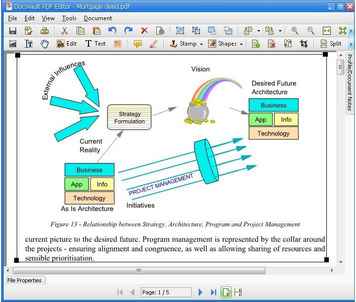
For complex PDF documents as shown below, the Snapshot Tool in Docsvault PDF Editor can be an useful tool to copy both text and an object or image together.
|
|
Copy/Paste Image using Snapshot tool
|
To copy both text and an object or image together as an image.
| • | Select the Snapshot by either selecting the Snapshot toolbar button  or choose Tools > Snapshot or choose Tools > Snapshot |
| • | Drag open a marquee around the part of the page to copy. The selection is copied automatically in the Clipboard. |
| • | Open another Windows application such as a Word file or Paint Brush, then paste into it. To paste the selection in the other application, choose Edit > Paste in the opened document of the other application. |
 Tip: Tip:
| • | Click Hand tool  to cancel the Snapshot function. to cancel the Snapshot function. |
|
 Note: Note:
|
Page url:
http://www.docsvault.com/online-help/professional/index.html?capturing_snapshot_page.html
|


