This session covers:
Extract Pages allows you to extract selected pages from the current PDF to one or more PDF files.
 |
The Split Document by Bookmarks feature allows you to split the currently opened PDF document into multiple smaller-size PDF documents.
In Main Menu choose Document> Split Document by Bookmarks and split your PDF document by ROOT Bookmarks. Resulting files will be named by names of these root bookmarks.
 |
If your document includes Comments, Form Fields, and Bookmarks, you can ignore or include them to the resulting documents.
Replace Pages allows you to replace a part of an active PDF document with a part of already opened PDF document or located in a destination folder file all supported formats.
Run the command from Main Menu > Document > Replace Pages and on the dialog set up the options.
Also you can Replace pages using Thumbnail pane: select pages by Shift+left clicking the mouse and open the Contest menu by right-clicking.
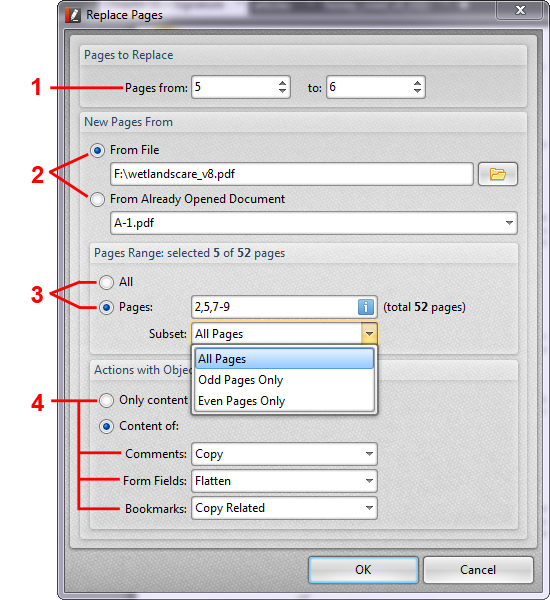 |
Replacement Pages in four steps:
1 - pages to take off from an active PDF document
2 - a document that contains the replacement pages
3 - fields to check replacement pages
4 - actions with content/comments/fields/bookmarks associated with replacement pages.
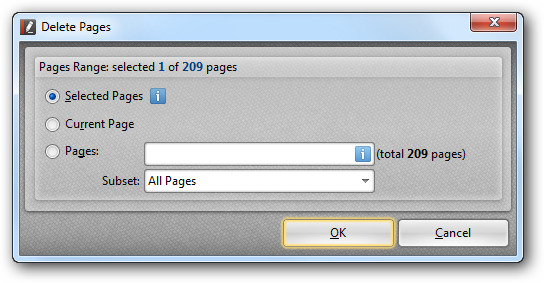
Delete Pages allows you to select pages to be deleted from the active PDF.
 |
Crop Pages allows you to crop the active document's pages based on setting Margins for the individual boxes.
This is most often necessary if the PDF is being used to transmit information for printing or faxing and user control over the information displayed must be maintained.
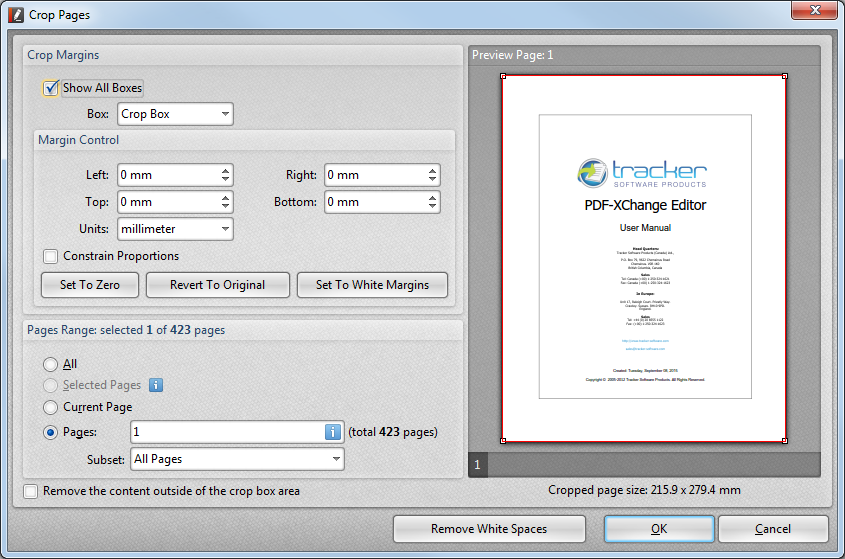 |
The Crop Pages Tool  allows users to crop the active document's pages based on setting Margins for the individual boxes.
To start, click on Drag Crop Rectangle... then select the desired area to be cropped:
 Area selected for cropping |
Once the Area is selected, the Crop Pages dialog will launch, allowing the user to fine-tune the area to be cropped.
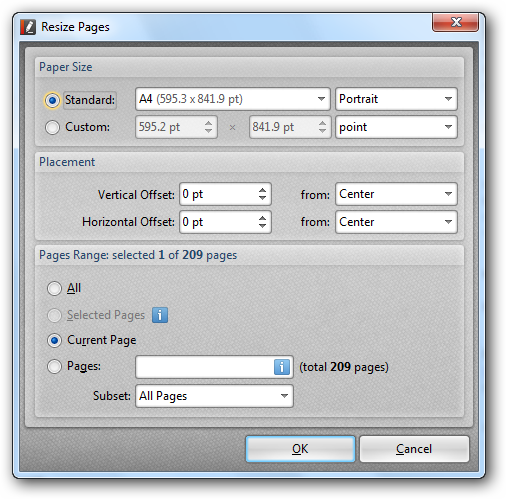
Resize Pages allows you to resize the selected PDF pages.
 |
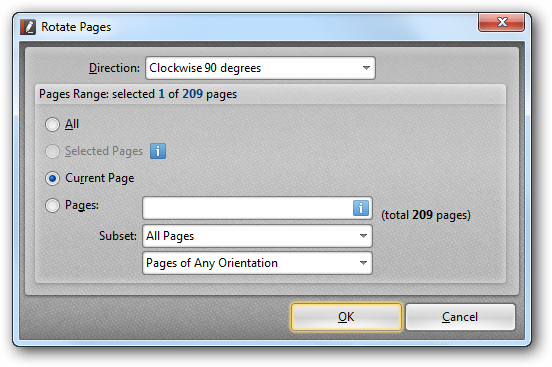
Rotate Pages allows you to rotate pages with more control than the simple toolbar controls.
 |
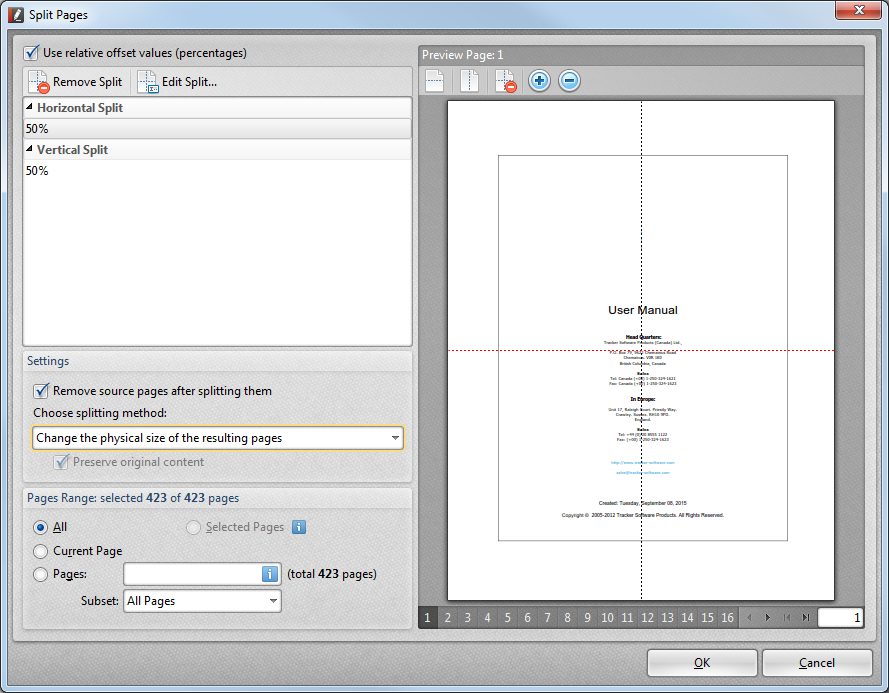
The Split Pages feature allows users to split pages into multiple pages. A split can also be Edited by mousing over, and adjusting the dotted line.
 |
For better visual organizing PDF document with a Cover Page, Table of Contents, and complex Content the Free feature Number Pages can be very effective. It allows you to put labels on the document for easiest navigation.
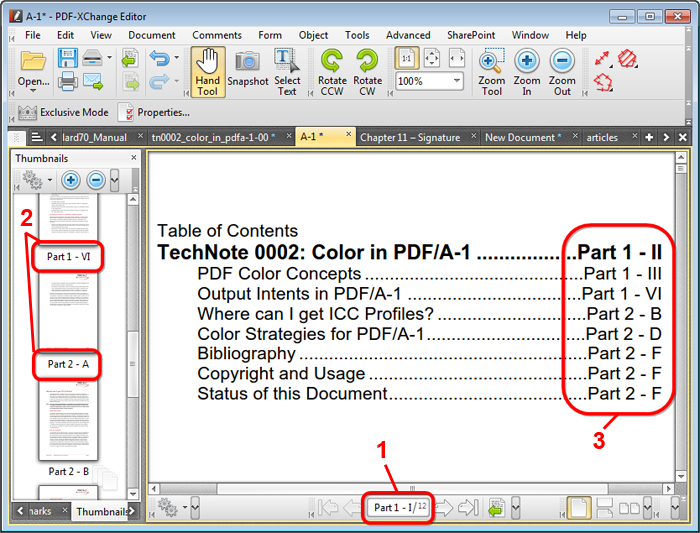 |
The result of applying the Number Pages:
1 - a label for the current page (the first page from the range pages 1-6) includes prefix "Part 1" and number "I";
2 - using the page numbering affects the page thumbnails (Thumbnails pane);
3 - the labels can be included in the Table of Content.