Once you've connected to Docsvault Mobile app, it's time to start finding, downloading and viewing your Docsvault documents.
❖ Throughout Docsvualt you’ll see the  icon – tapping this is like right-clicking on a mouse, and gives you additional options.
Home Screen
Let us get familiar with each component:
Left Navigation Menu:
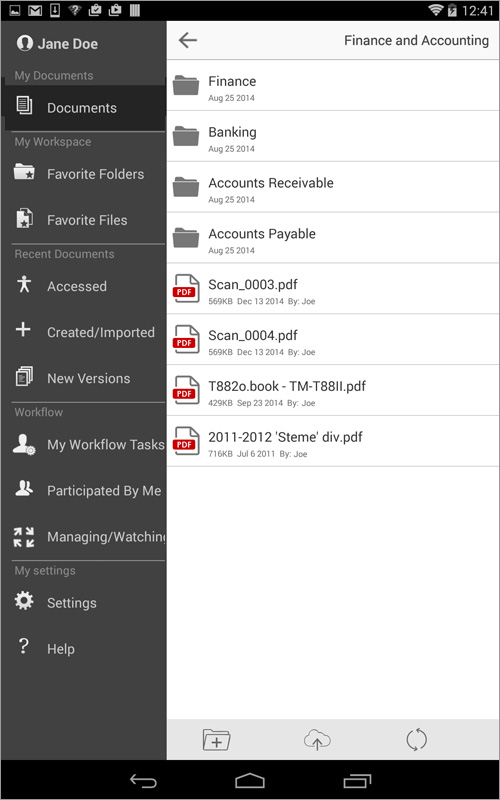 |
Tap the device menu button to see the following options:
My Documents:
You can view directory listing of all your cabinet, folders and files under this section
My Workspace:
My Workspace section provides you with personalized views of files and folders.
•Favorite Folders: A list of folders located throughout Docsvault that you have flagged as favorite.
•Favorite Files: A list of frequently used files flagged as favorites for quick access
Workflow:
The workflow node allows you to access your workflow tasks:
•My Workflow Tasks: A list of workflow tasks assigned to you
•Participated By Me: A list of workflow tasks you have participated. Does not show tasks for completed workflows.
•Managing/Watching: A list of all workflow tasks for workflows you are managing or watching
Recent Documents:
My Recent Documents section allows you to quickly access your recently created and accessed documents:
•Accessed Documents: A list of documents recently accessed by you
•Created/Imported: A list of documents that you have recently added
•New Versions: A list of new document versions created by you
My Settings:
Settings: Opens Docsvault Mobile settings.
•User information: Displays user's login credentials such as user name, password, server and login time.
•Clear Local Cache: To flush the information stored locally.
•Version: This applications Version number.
•Terms of Services and Privacy Policy to use Docsvault Mobile app
Help: Get to this help section!
Center Panel /Navigation content
This section displays files and folders available to you as per your security rights.
You can tap  from the bottom bar to refresh the current list.
Top bar
From any screen, tap  navigation icon to return to the home screen or tap the
  back icon to go to the previous screen.
Tap Search  on the top bar of center list panel to find your files and folders.
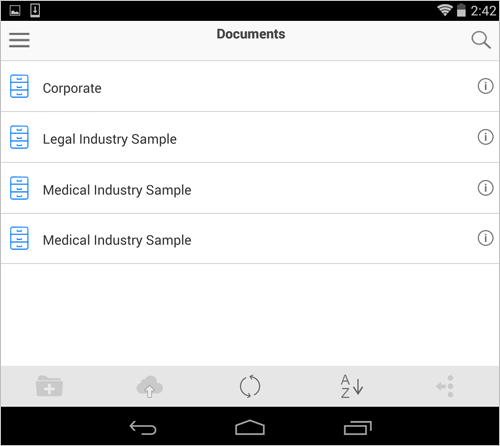 |
Bottom bar
The bottom bar in the center panel displays controls that allow you to add new folders, upload new files, sort, refresh, copy, cut, and delete selected files.