Adding Users using Docsvault Authentication
User accounts are created by the admin or members of the administrators group. Your user account is what identifies you both to the system and to other users.
A standard Internal user can perform tasks such as creating folders, scanning, checking out documents for edits, creating new versions, etc. A Read-Only user has limited privilege such as listing, preview and reading documents.
Adding a new User
•Select User/Group > User node in Docsvault Server Manager
•Click the New button on the User option. The New User window will appear
•User Options:
oRead-Only: This option is selected to create Read-Only user. This type of user can only open and read documents in Docsvault.
oAllow Web Access: Select this option to allow user to access documents via Web Client.
oActive: Deselect this option to temporarily prevent the user from accessing the system.
•User Profile:
Authentication: Select Docsvault if the user is added using Docsvault Authentication and Active Directory if the users is added using Active Directory Authentication. Under this topic we will choose Docsvault authentication. For information on Active Directory authentication, see Adding Users using Active Directory Authentication
•Fill up the personal and login information of the user such user name, full name and email address.
•Password: Set user password for authentication. Make sure the password is at least 10 characters long and includes at least one letter, one special character, and one number.
•Groups: From the Groups list, select the Groups you wish to assign to the user
•Default System Rights: Assign the default System Rights to the user
•Ownership Override Setting: By default, any user that imports or creates a file or folder in Docsvault becomes the owner of that document. However in many cases it may be desired that the ownership of such document stays with a higher level user like a manager or an administrator. Using this ownership override feature you can specify a user who will own all documents created by this user. For instance: In the screenshot below, the ownership of file/folder imported by the user 'Jacob' will be owned by the Overriding user 'Jennifer'.
•Click on Save button to save this user
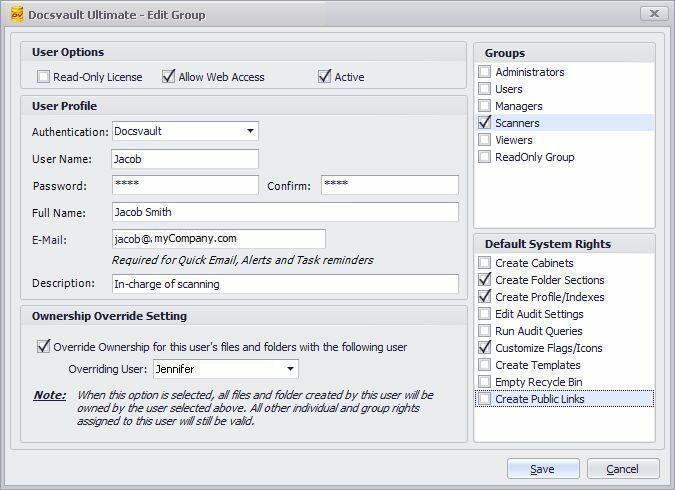 Creating a User |
•Admin User & Administrators Group is a default admin user and group and hence cannot be deleted. However, any members of the administrators group can edit the profile of the default admin user (Docsvault Administrator).
•All administrator group users will have rights to access documents via Web Client.
|

•User Name can be alphanumeric and is not case sensitive. Passwords are case sensitive. •Read-Only user can be converted to Standard user at any time but not vice versa. |

Editing a User
•Select User/Group > User node in Docsvault Server Manager
•Select the User whose profile settings you want to change
•Click on Edit button.
•The Edit User pop-up window will be displayed
•User Options: You can change the user options and status of the user here. Only users with Active status will be able to login into Docsvault.
•If needed click on the Change Password button to change the user password. A Reset Password window will be displayed.
•Enter the New password, and then enter the new password again in the Confirm Password field. You can send an email alert to the user at their registered email address by checking the 'Email this password ....' option.
•Click on OK to change the password.
•Click on the Save button to update the changes.
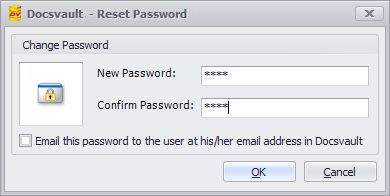 Editing a User |
'Reset personalized setting' will reset the personal settings of the user to default. This will reset user's theme, checkout location, export locations, view settings, etc. However no data will be lost. |
Delete a User
•Select User/Group > User node in Docsvault Server Manager
•Click on the User option. This will display a list of existing users
•Select the User to delete
•Click on the Delete button
•Confirm Delete dialog will appear as below:
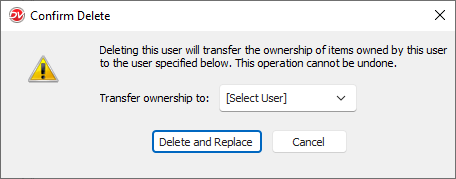 Delete User Confirmation |
•From Transfer ownership to, select the user who should become the new owner of the deleted user's items.
•Click Delete and Replace to transfer ownership and delete the user.
•Click Cancel to cancel the operation.
•You must make sure that no changes are made to users and groups while the users are logged into Docsvault. |

When a user is deleted, Docsvault will identify if the user owns any folders, documents, or tasks. You can transfer ownership of the user's items to a specified user before deleting the account. This operation cannot be undone.
All tasks assigned by the deleted user will also be deleted.
If a username is deleted, all of its associated rights will be removed. An administrator will not be able to reestablish those permissions by adding the same user again.