Toolbars
The Toolbars contains set of toolbar which appear by default. It consists of all the tools of the most frequently used features and functions.
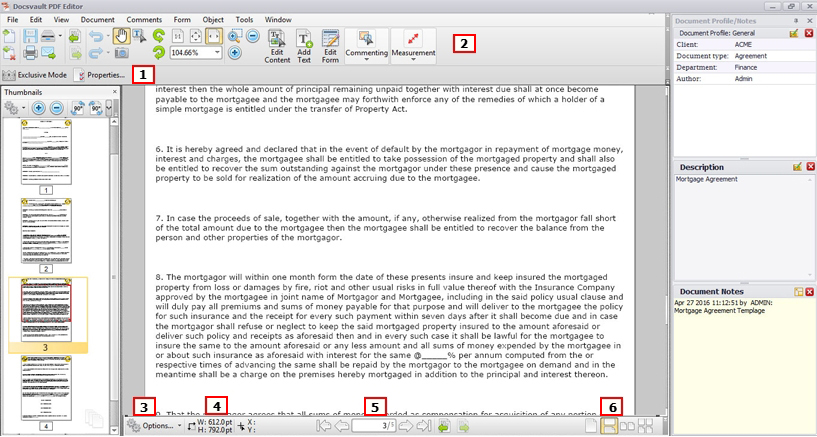 |
1. Properties Toolbar
The Properties Toolbar [Ctrl+E or View > Toolbars > Properties to toggle] becomes active when an object in PDF is selected, allowing you to modify the look, feel and functionality of that tool or object. The options in the Properties Toolbar are dynamic and differ depending on what is selected. For example; while typing in somewhere like a typewriter annotation or text box, the properties Panel will look like what is shown below.
 |
2. Main Toolbar
It contains the essential tools for managing your PDF document in Docsvault PDF Editor. Includes: Save (save the active document), Save Copy (saves a copy in Docsvault), Check In, Print, Cut, Copy, Paste, Undo, Redo, Delete, Find. Others toolbar includes: Commenting, Content Editing, Measuring, Rotate View, Standard and Zoom Toolbar.
 |
3. Document Options ToolbarView Toolbar
Found in the bottom left, Clicking on the  Options Toolbar brings up the following menu
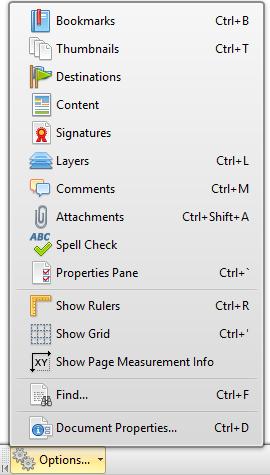 |
Bookmarks toggles the Bookmarks Panel |
Thumbnails toggles the Thumbnails Panel |
|
Destinations toggles the Destinations Panel |
|
Content toggles the Content Panel |
|
Signatures toggles the signatures Panel |
|
Layers toggles the Layers Panel |
|
Comments toggles the comments Panel |
|
Attachments toggles the attachments Panel |
|
Spell Check allows you to spell check the whole document |
|
Properties Panel Toggles the Properties Panel |
|
Show Rulers shows document rulers |
|
Show Grid shows a gird overlay on the PDF |
|
Show Page Measurement Info toggles the Measurement info |
|
Find toggles the Find bar |
|
Document Properties... Opens the document properties dialog |
4. Show Page Measurement Info
The Show Page Measurement Info  will show the size of the currently active page next to the
  as well as the mouse pointer's current coordinates next to the
  in whatever unit is set in the Measurement sections of the Preferences menu.
.png) |
5. Page Navigation
The Document Navigation toolbar contains the necessary tools to navigate within a PDF document.
 |
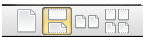
6. Page Display
In the page layout toolbar, you can set how the pages are viewed in the document display area such as single page, continuous, two pages, two pages continuous. By default, the page Layout Toolbar is found in the lower right corner of the Editor window.
 |