Documents sent by Docsvault's Signature Request can be signed on any desktop or Android & iOS device web browsers. Signers do not need to sign up or purchase Docsvault to sign documents. They just need to have an active internet connection to access and sign documents online.
Signing Documents
1. Review the Signature Request email
The signing process starts by receiving an email send by Docsvault on behalf of the sender for a signature request.
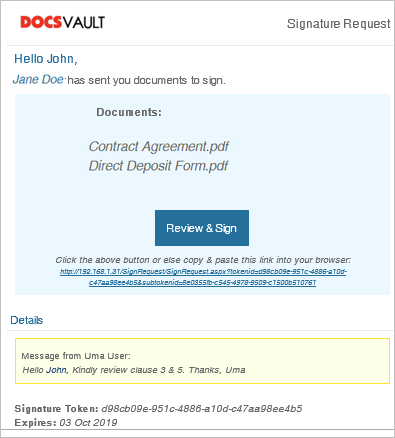 Signer receives the signature request email |
This email will include details like documents to review and sign, the validity of the request, list of signers involved in this request and a personal message from the sender if any.
Click on Review & Sign to start the signing process.
2. Agree to sign electronically
Upon opening the secure link in your web browser, you will be directed to a welcome page which includes a message from the sender and a signature disclosure requesting your consent to electronically sign listed documents.
In some cases, you might be asked to enter a password before accessing and signing the documents. This option is set by the sender of the request. Enter the password shared by the sender. For privacy and security, any unique information provided by the sender such as passwords and other data, should not be disclosed to a third party.
 |
Click on the 'Electronically Sign' link to review the signature disclosure and then click Continue to agree to electronically sign the document. If you do not wish to sign documents electronically, you can simply close the browser to terminate this session.
3. Start the signing process
You are taken to the signing interface where you can review and sign documents.
•Click the START button on the left to begin the signing process
 Start Signature Process |
You are taken to the first tag requiring your action.
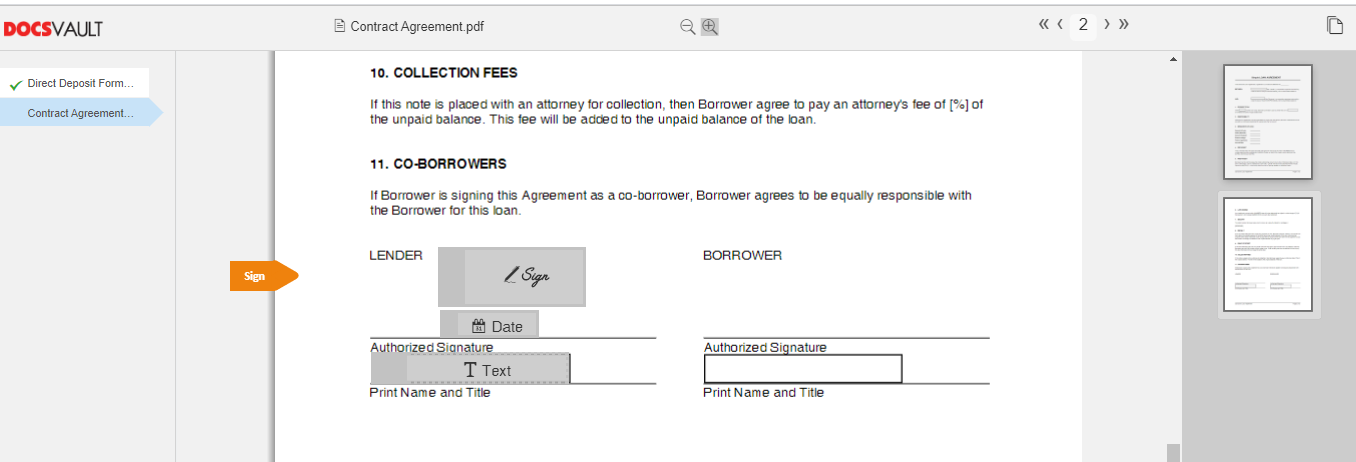 Start Signature Process |
Sign: Clicking on the sign tag allows you to put your signature on the document.
The first time you click on the Sign tag, you will be prompted to create your signature. You can either draw your signature & initials using a mouse, your figure or a stylus on a touchscreen, select from many available styles or upload an image of your signature.
If 'Remember my Signature' is selected, Docsvault will encrypt and save your signature for future signature requests sent to you.
You have an option to sign documents with or without a date stamp. Enable the 'Add date to signature' option to display date below your signature.
Click Save & Sign to save your signature and return to the document.
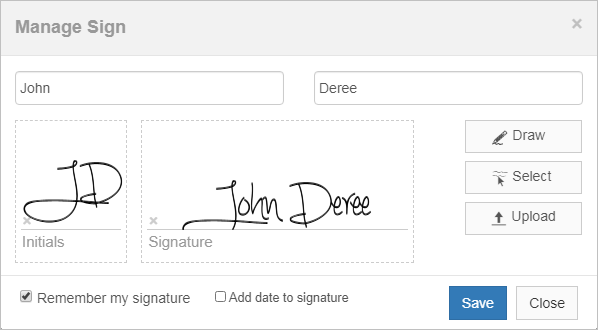 Manage Signature |
You can edit your signature by clicking on the edit icon at the top of the guide box.
The orange arrow can help find the next fields to complete if you are scrolling through a large or multiple documents.
•Add date, text and other annotations if required in the document.
•When you finish signing on all the documents, confirm signing by clicking the Done button.
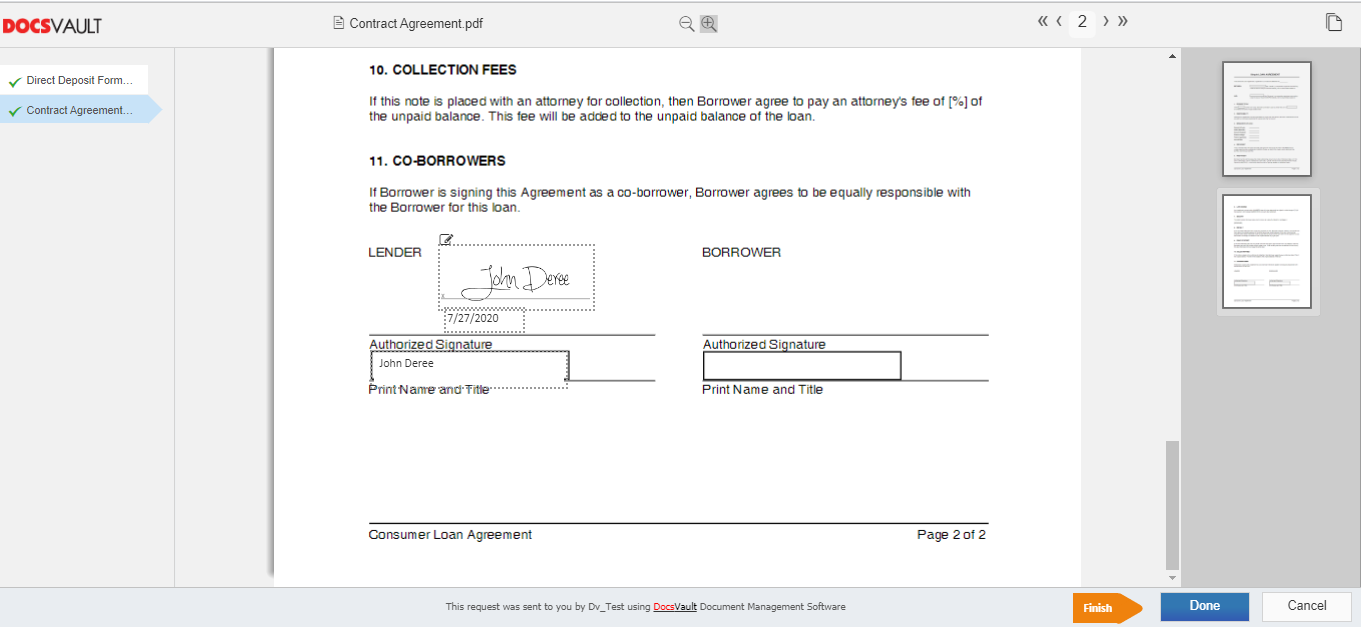 Signing Interface |
Once documents are saved in the system, a message appears to let you know you have successfully signed the documents. You will also get an email providing access to the final version of the document. Note that If there are multiple signers involved, the documents are not finalized until all signers have signed the documents.
4. Downloading Signed Documents and Signature Certificate
The last signer in the process (or the first signer in case of a single signer) can click on the “Download” button on the success page to easily download signed documents and optionally the signature certificate. Additionally, an email notification with a download link is sent to all the signers once the signature process is complete. This link is accessible until the expiry date set on the signature requests. Singers can always request a copy of the signed documents from the original sender of the request.
•Click the View Document link in your email which will direct you to the completion page
|
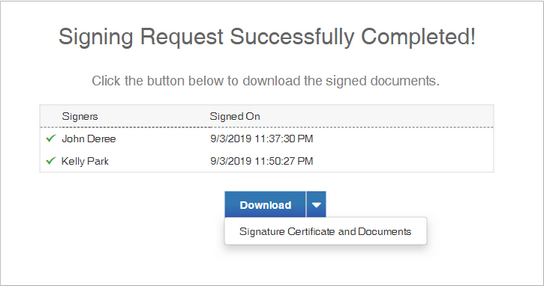
•You can either download the signed documents only or along with the signature certificate.
oClick the Download button to download the document. If there are multiple files, a .Zip file will be downloaded which will include all the signed documents.
oClick on the down arrow next to the Download button to download signature certificate and documents.
Note: Certain information about you, such as your name, email address, and IP address, are displayed in a signature certificate and are visible to all the participants of the signature request that you are apart of.
Validating a digital signature
You can validate the signatures with Adobe Acrobat Reader or Adobe Acrobat. See Validating a digital signature in Adobe Acrobat.